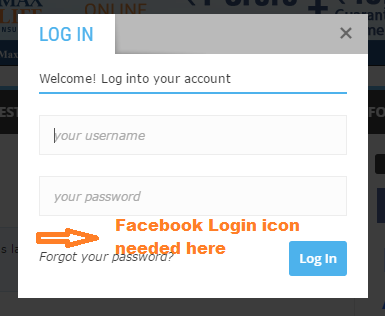
I have installed a plugin which adds the feature of login through Facebook or Twitter account (both WordPress Social Login plugin and Super Socializer plugin work). While icons allowing login through Facebook and Twitter appear correctly on the WordPress wp-admin login page, BUT they do not appear on the “Sign in / Join” popup of the Newsmag theme that is shown in the Top bar. Where should I add the shortcode to show these in the Sign In popup? Which file to be edited and where?

Hi
The file which generate theme’s login widget is top-menu.php: http://screencast.com/t/CQrTxunx Try to add the shortcode in this file and cheek how it goes: http://screencast.com/t/ocX07t6TI1
Note that we didn’t tested this plugin and we can’t guarantee the will work fin wit our theme.
Thanks!
Thanks for the reply. However, the solution suggested by you puts the Facebook login in the top menu bar. But, what I wanted was the Facebook login in the “Sign in / Join” popup which appears when one clicks on the Sign in / Join link in the top menu. Here is the image that shows the popup for Sign in / Join where I want to place the Facebook Login icon: http://tilakmarg.com/img1/login01.png
Will be grateful if you can please provide the solution for this.


Please note that I have used Super Socializer plugin, so I have used its shortcode. To do so, in the file Newsmag/parts/header/top-menu.php, I have inserted following line at Line No. 81:
<div>'; echo do_shortcode('[TheChamp-Login title="Login with Facebook or Twitter"]') ; echo '</div>
Hope it helps.
Though I am not from tagDiv, but let me tell you the method that I use.
I first download the original file that is to be edited. Download is done either through FTP (such as FileZilla) or by using File Manager of cPanel of the hosting account.
Thereafter, I save that original file (with some other name or at some other location on my laptop) that has been downloaded, for future use, if any (such as if things go wrong after editing).
Then, I edit a copy of that file using NotePad++ and save it with the same name as the name of the downloaded file.
Lastly, I upload this edited file to the same location (and with the same name) where the downloaded file originally resided. Then, I check the functionality and if something goes wrong, I again upload the saved original file instead of the edited file.
Hope it helps.