sobelarry
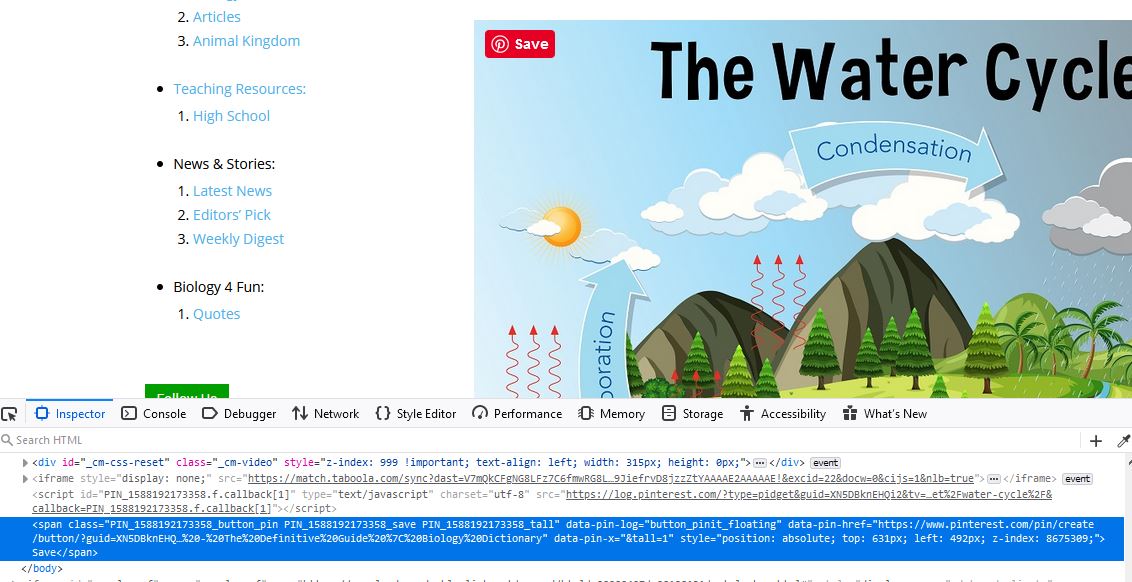
 Could you please clarify your answer? I am not using any widget from Pinterest, but I did set up a connection from Pinterest to my website. Could you let me know what I need to do on Pinterest in order to remove this icon?
Thanks.
sobelarry I’m ok to create a separate template for the page. I need the page layout to be 3 columns, with sidebar 1 on left, page content in the middle, and sidebar 2 on the right. In post template I can easily do that. May I know how I can get this layout in page template, and how to apply this template on specific pages?
sobelarry The theme’s system status are showing all green lights, so the edit content loading issue is not because the memory limit or other settings.
WP Memory Limit 1 GB/request
post_max_size i 48M – You cannot upload images, themes and plugins that have a size bigger than this value. To see how you can change this please check our guide here.
max_execution_time 60
max_input_vars 6500
SUHOSIN installed false
sobelarry Hi!
Yes I followed the instruction when there was an ad that was duplicated a month ago, by deactivating all plugins including wprocket cache plugin, turn off cloudflare cache, switch to parent theme, but the ad was still displayed twice.
I gave another shot few minutes ago, same as last time, I still see the social media icons displayed twice. Note that I did not deactivate the super socializer plugin because I need to produce the error, however, I know it’s not this plugin causing issue because I didn’t have this plugin activated when I see the ad was displayed twice last time.
See the screenshot here: https://biologydictionary.net/1.JPG
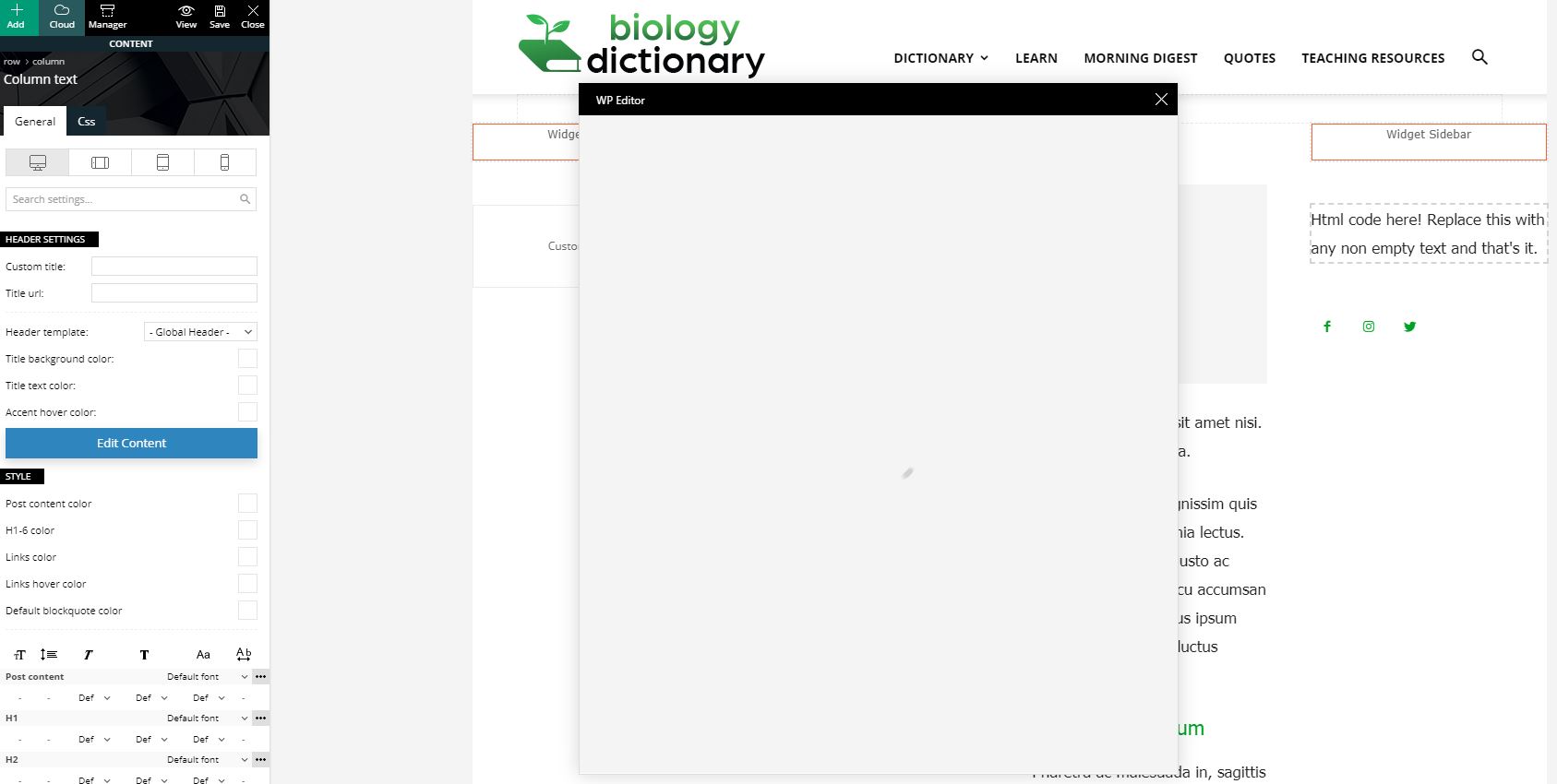
I also found that when I try to edit content in “column text”, it keeps loading. (after all plugins deactivated, cached cleared). Screenshot: https://biologydictionary.net/2.JPG
Here is the html of the page that has duplicated items. This html is fetched when all plugins deactivated, cache cleared. https://biologydictionary.net/3.txt
sobelarry Basically its a content widget that relates to the post
sobelarry Second question – I want to create a “facts list” for each post, and display it in sidebar as a widget, as seen here – https://a-z-animals.com/reference/coral-reefs/. I don’t find a plugin or any way that can help to create custom html on post level. Do you have any advice? Thanks!
sobelarry Other than 2 questions above, I also need some help on setting a page as footer.
So I have created a footer page and using it as footer. It looks good on the pages, but on posts, there are extra content displayed below the footer, including related posts and share buttons, see here – https://bit.ly/2vxgPZd.
How could I remove those content? They should not appear there.
sobelarry Still waiting for the reply. Thanks.
sobelarry Let me clarify my questions –
1. MODAL image display captions rather than titles, is there a way to let it display image titles?
2. Is it possible to move the </article> element before sidebar widgets? I still want to keep the sidebar widgets, but I don’t want to keep them inside the <article></article>. In other words, in my site, I hope the </element> appears before <div class=”td-pb-span4 td-main-sidebar” role=”complementary”>
Great update btw!
-
This reply was modified 7 years by
sobelarry.
sobelarry Ah it displays caption, I see. However, my images do not have captions, so I need to display the title. Is there a way to edit the code to replace the caption?
The url is biologydictionary.net, but I already installed a lightbox plugin, so you can see the title displayed. If I can edit the theme to show title, I would rather not to use a plugin.
Also, I found the </article> html is placed after the sidebar widgets, how can I move it up to the end of the content, and exclude sidebar?
Thanks!
-
This reply was modified 7 years by
sobelarry I just hope when someone click the image, it will be popped up and enlarged to the original size, with title available.
sobelarry Just to clarify, if I enable modal image, when user clicks an image and it pops up, the image title cannot be displayed?
If that is the case, and I have to show the image title, is there a plugin you would recommend to show the lightbox with title?
Thank you!