xxxLesy
 After much more testing I found the culprit:
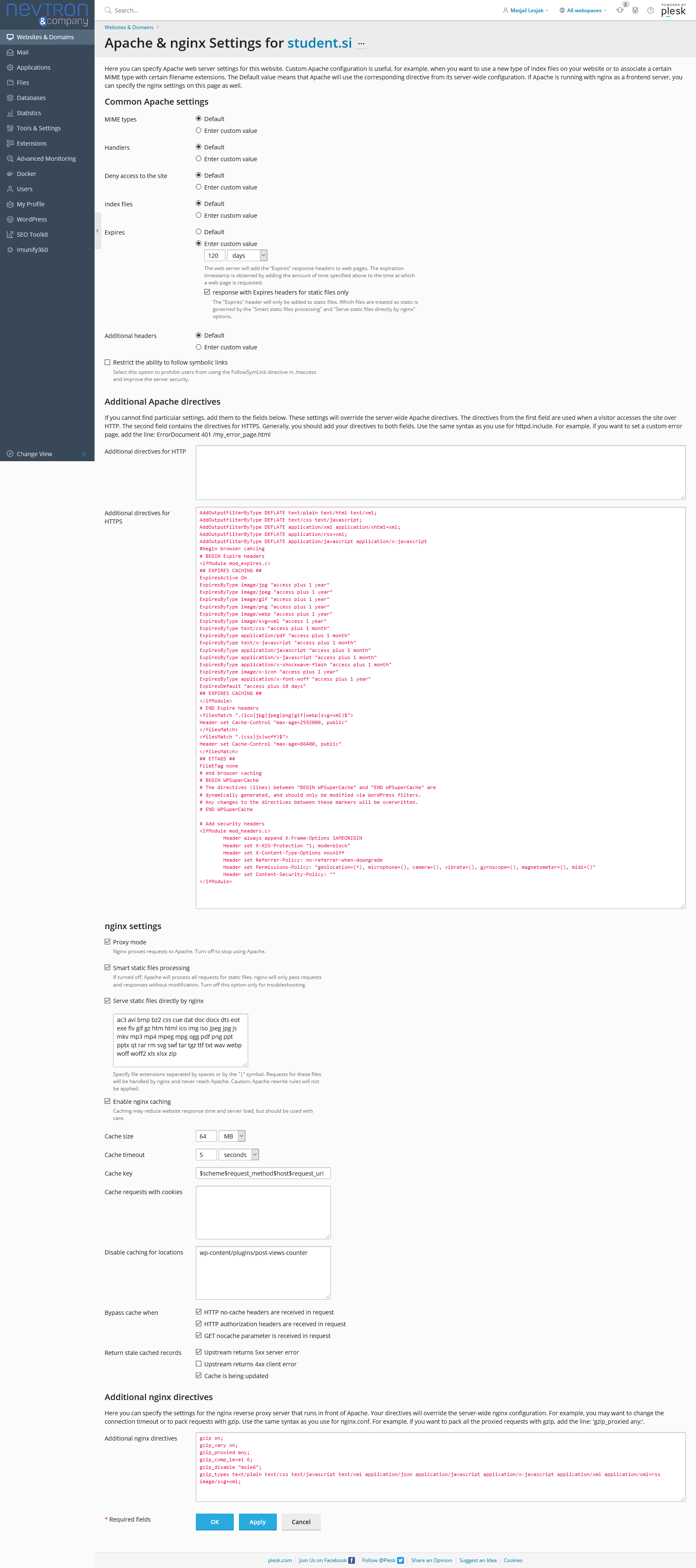
In Plesk under Apache & nginx Settings for each site you have to disable “Enable nginx caching”.
It doesn’t seem to negatively effect speed results and Google PageSpeed now always pulls the correct version of the site for each mobile and desktop test.
xxxLesy Tnx topmagazin. Rocket loader was disabled and I dont use Wordfence (iThemes security has no http header settings). I kept playing with Cloudflare settings and nothing made a difference. Than 1 week later it just magically fixed itself ?
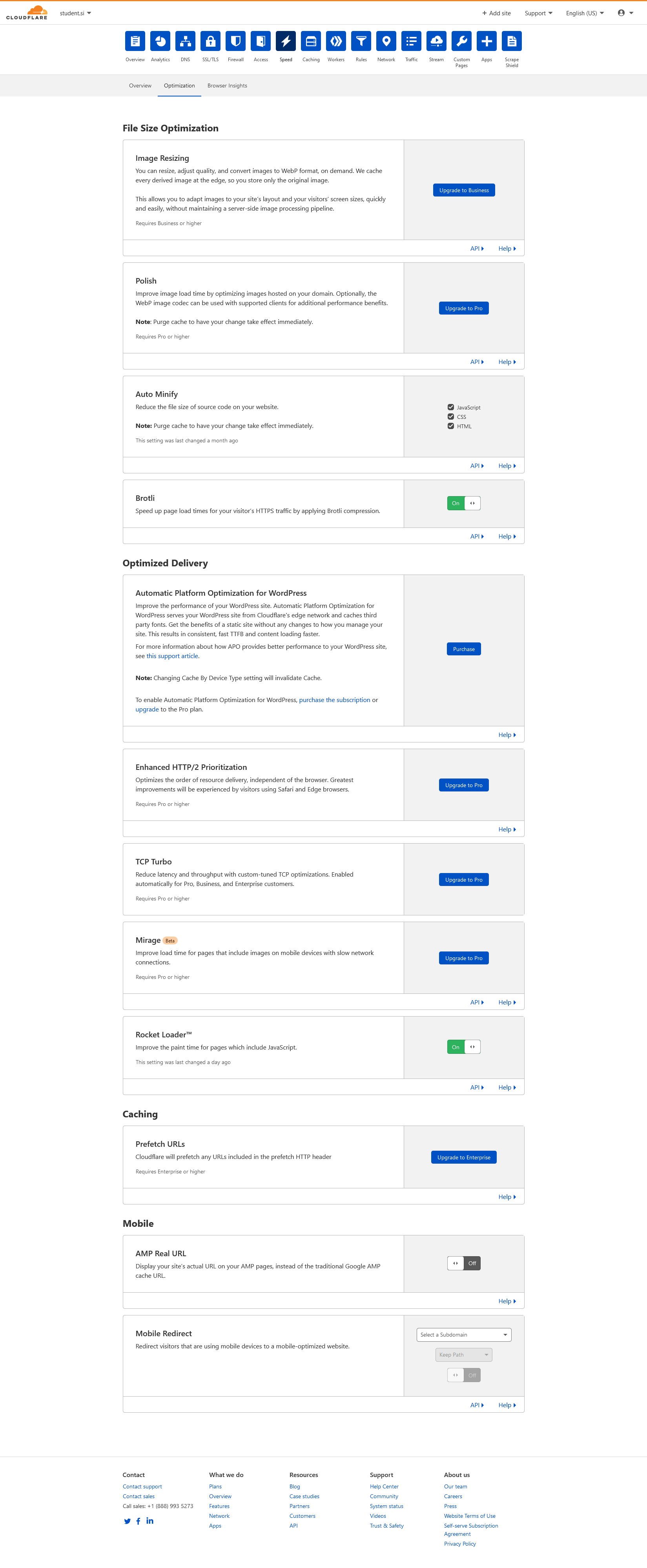
So for anyone potantially getting this issue, the correct Cloudflare settings are:
– auto minify everything
– brotli on
– rocket loader off
Consider this issue resolved.
xxxLesy I think we’re misunderstand each other. I don’t need help speeding up my site. I did all those guides and speed is fine. I’m saying Google PageSpeed mobile tests desktop site instead of mobile, as it should.
Fortunately I have 2 sites with identical setups and was able to test more. I narrowed the issue down to Cloudflare. As soon as I put my site behind Cloudflare, PageSpeed no longer loads the mobile version of the site. I have Rocket loader off (as well as Brotli), as all the guides suggest. I see Cloudflare has a Mobile Redirect option under speed. Is there any way to use this to redirect PageSpeed to the proper mobile site?
Let me repeat that this only happens for PageSpeed. Actual users see the mobile theme version of the site, as they should.
xxxLesy Thank you Bettina,
Site: https://www.student.si/
PS: https://developers.google.com/speed/pagespeed/insights/?url=https%3A%2F%2Fwww.student.si%2F
Notice on mobile PS it mostly pulls desktop view (big grid: 1 large article + 3 in row bellow) instead of mobile theme (1 banner + grid: 3 articles in a colum) resulting in huge LCP as it renders desktop size images.
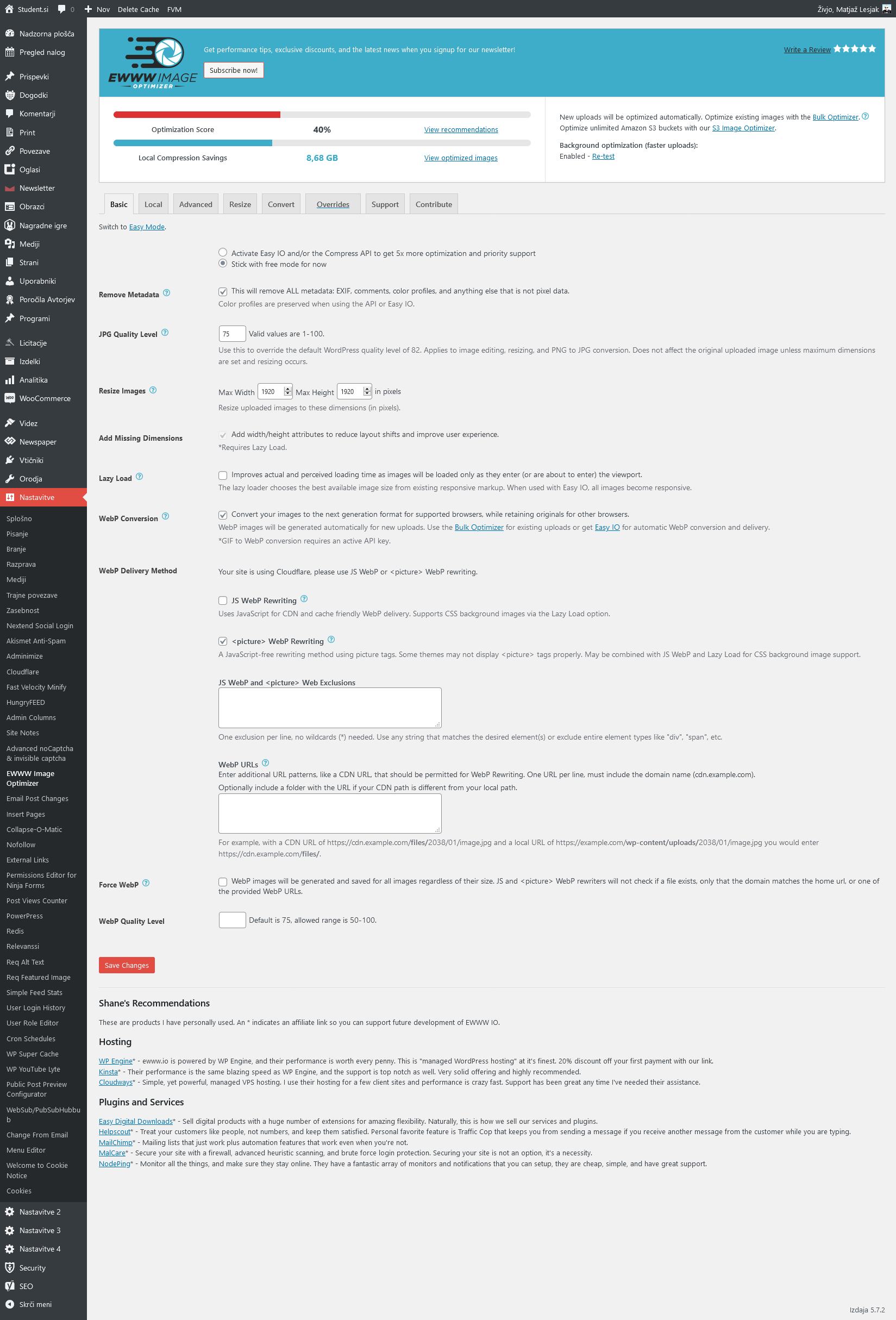
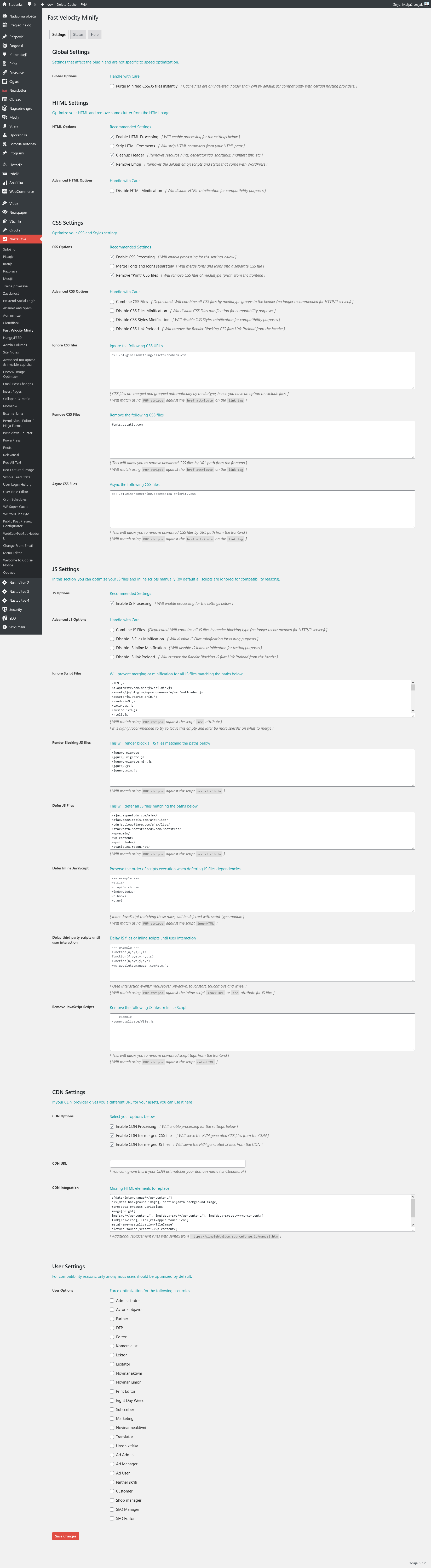
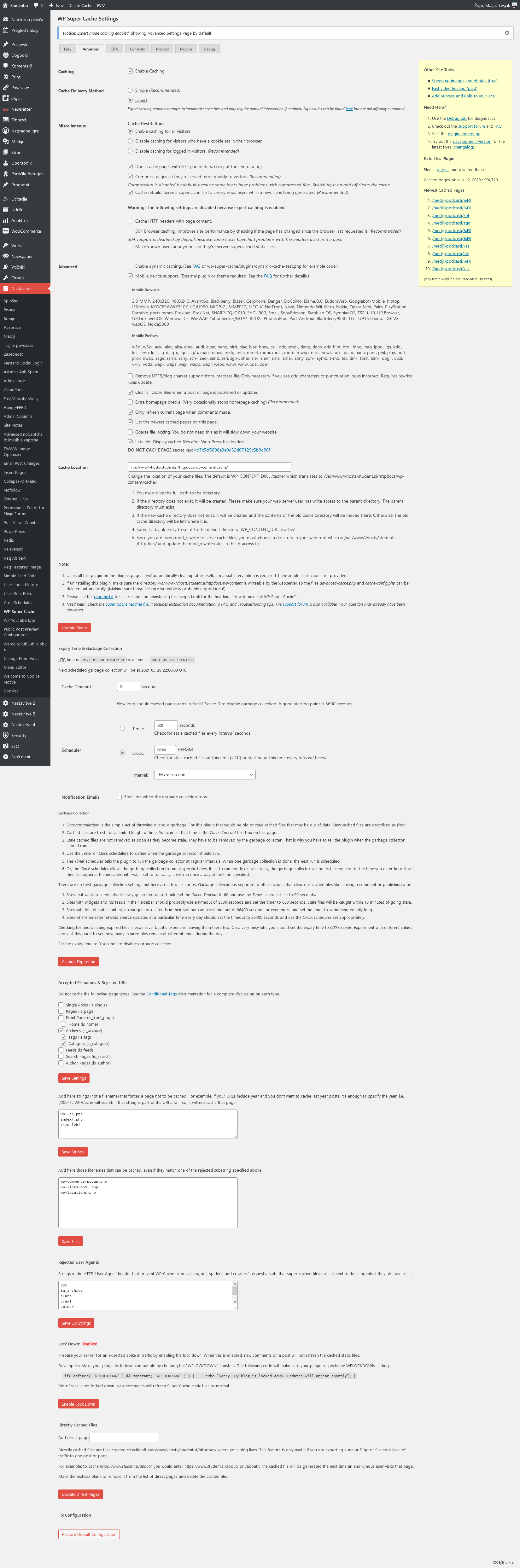
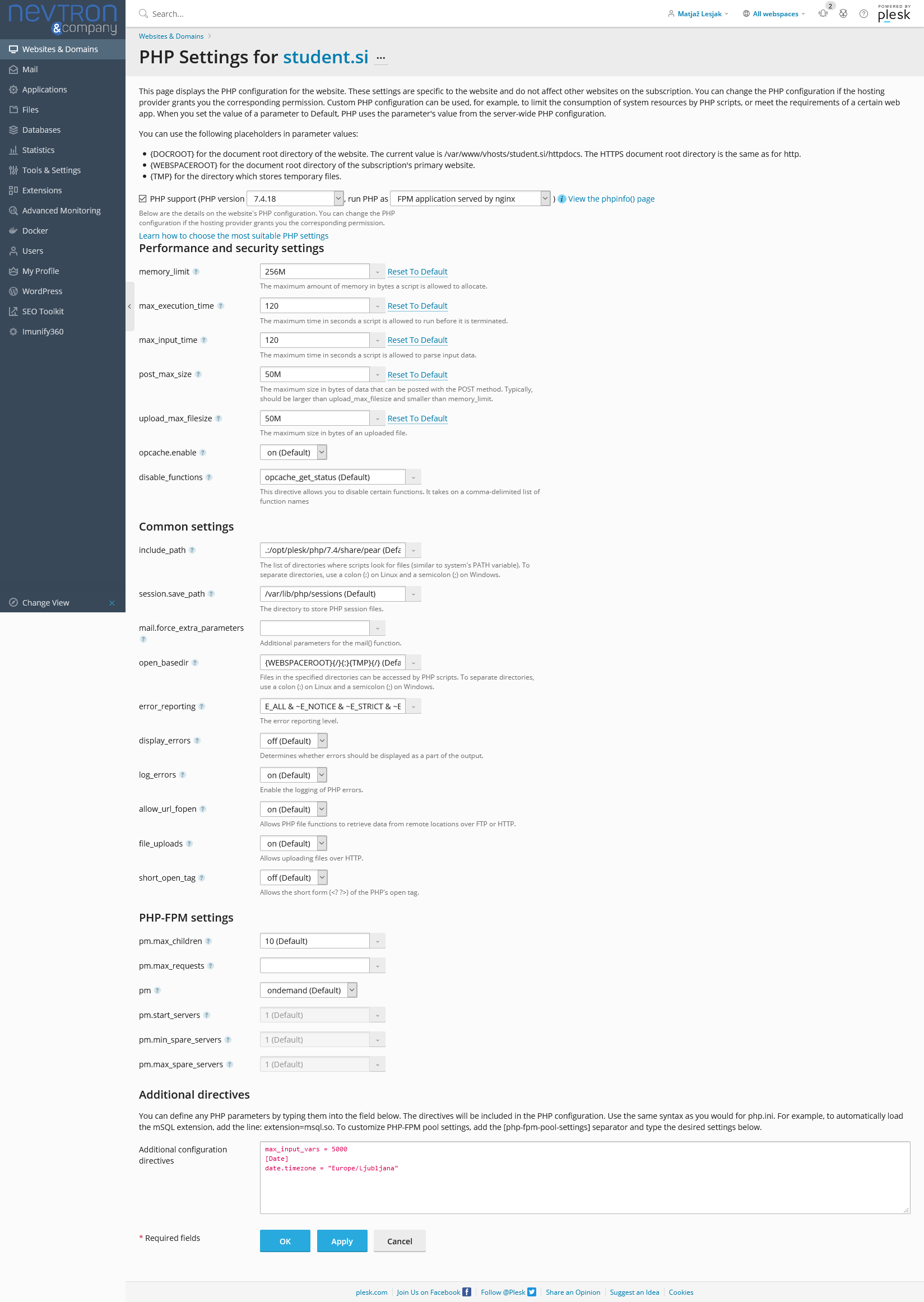
Relevant settings screenshots:
Cloudflare: https://student.si/wp-content/uploads/cloudflare-st.png
Ewww: https://student.si/wp-content/uploads/ewww-st.png
FVM: https://student.si/wp-content/uploads/fvm-st.png
Supercache: https://student.si/wp-content/uploads/supercache-st.png
Php: https://student.si/wp-content/uploads/php-settings.png
Apace & Nginx: https://student.si/wp-content/uploads/apache-nginx.png
-
This reply was modified 5 years by
xxxLesy.
xxxLesy I tracked it down by disabling plugins 1 by 1. The cause is compatitability with WooCommerce.
Disabling WooCommerce fixes it, but downgrading to previous versions doesn’t. Tested with:
WC 4.9.2 – not working
WC 5.0.0 – not working
WC 5.1.0 – not working
WC 5.2.0 – not working
WC 5.2.1 – not working
WC 5.2.2 – not working
WC 5.3.0 RC1 – not working
On Newspaper side tested with:
10.4 – not working
10.3.9.1 – not working
10.3.9.0 – not working
10.3.8 – not working
10.3.7 – not working
If Newspaper rollback updater also rolls back TD composer plugin, which is probably the real problem, than that would mean it’s not a recent update thing, but a major compatitability issue (I only recently installed WC, so I wouldn’t know).
Can you take it from here Bettina?
xxxLesy I can confirm. Standard Pack does not effect this. Post Settings metabox is part of TD Composer (/td-composer/legacy/common/wp_booster/wp-admin/content-metaboxes). I never had SP active and had Post Settings metabox in posts. Now it’s just gone (not sure from which version). It’s gone in both classic and guttenberg editors.
Enabling Standard Pack does not activate Post Settings.
xxxLesy You want to disable infinte scrolling.
1. Open any post
2. On the top of the page click the green Edit template button
3. On the bottom left click the black hamburger menu button.
4. Unselect Enable auto loading (make sure it’s grey, not blue).
xxxLesy A lot of us are using child themes. Will it become child theme compatible?
xxxLesy It’s not in the theme anymore. It’s in the td_composer plugin: plugins\td-composer\legacy\common\wp_booster\wp-admin