
- ApiPractical example – How to add a new Block and Module
- Apitd_api_block::delete
- Apitd_api_block::update_key
- Apitd_api_block::update
- Apitd_api_block::add
- ApiAPI – Blocks – Introduction
- Apitd_api_thumb::update_key
- Apitd_api_thumb::update
- Apitd_api_thumb::add
- ApiAPI – Thumbnail – Introduction
- Apitd_api_category_top_posts_style::update_key
- Apitd_api_category_top_posts_style::update
- Apitd_api_category_top_posts_style::add
- ApiAPI – Category top section style – Introduction
- Apitd_api_module::update_key
- Apitd_api_module::update
- Apitd_api_module::add
- ApiAPI – Modules – Introduction
- ApiUsing the Theme API in plugins
- ApiThe Theme API
 ludyma
 Hi.
You are right not to understand, you make the copy of the question wrong.
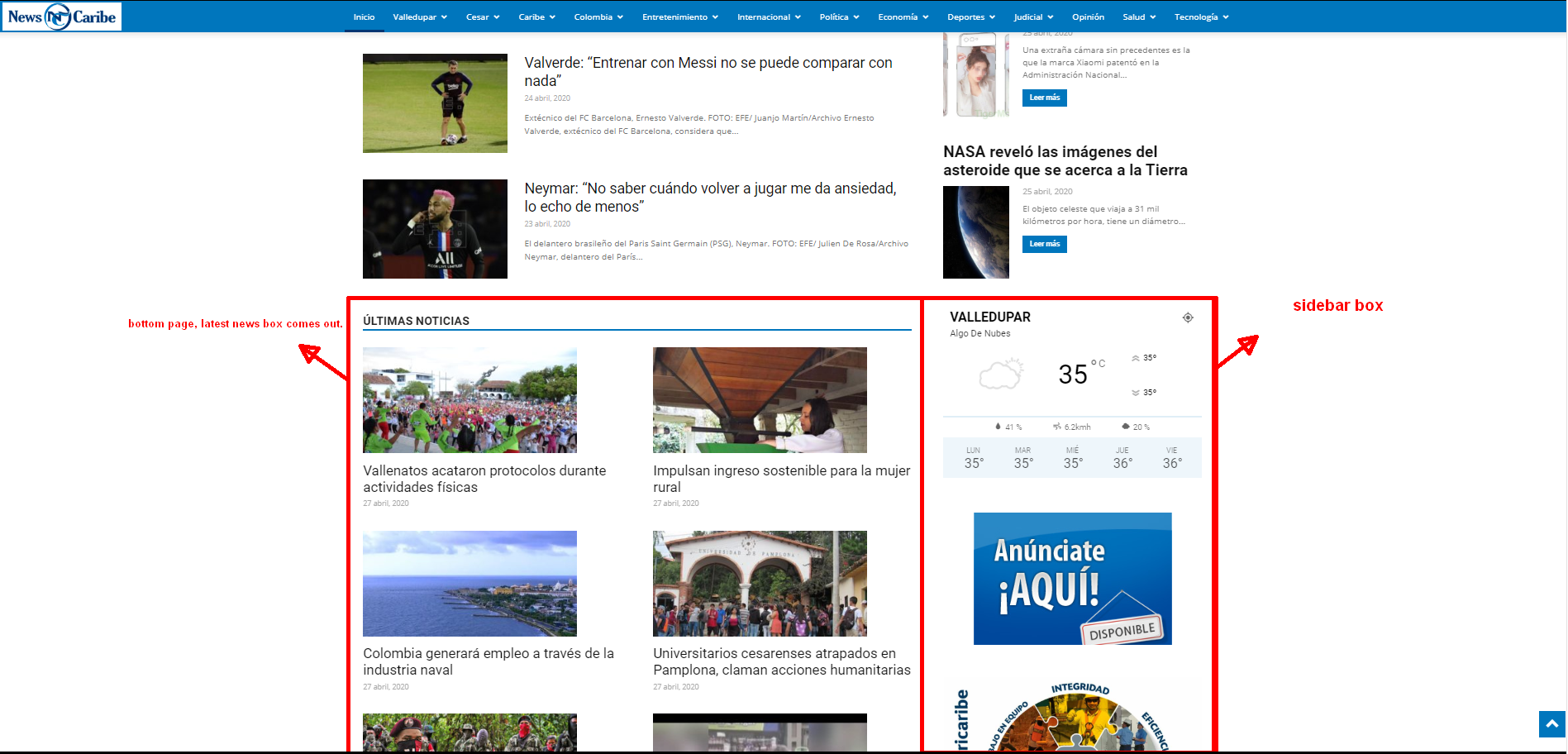
The question is how do I change that block at the bottom of the page that is always seen, how or where is that option to change or remove it.
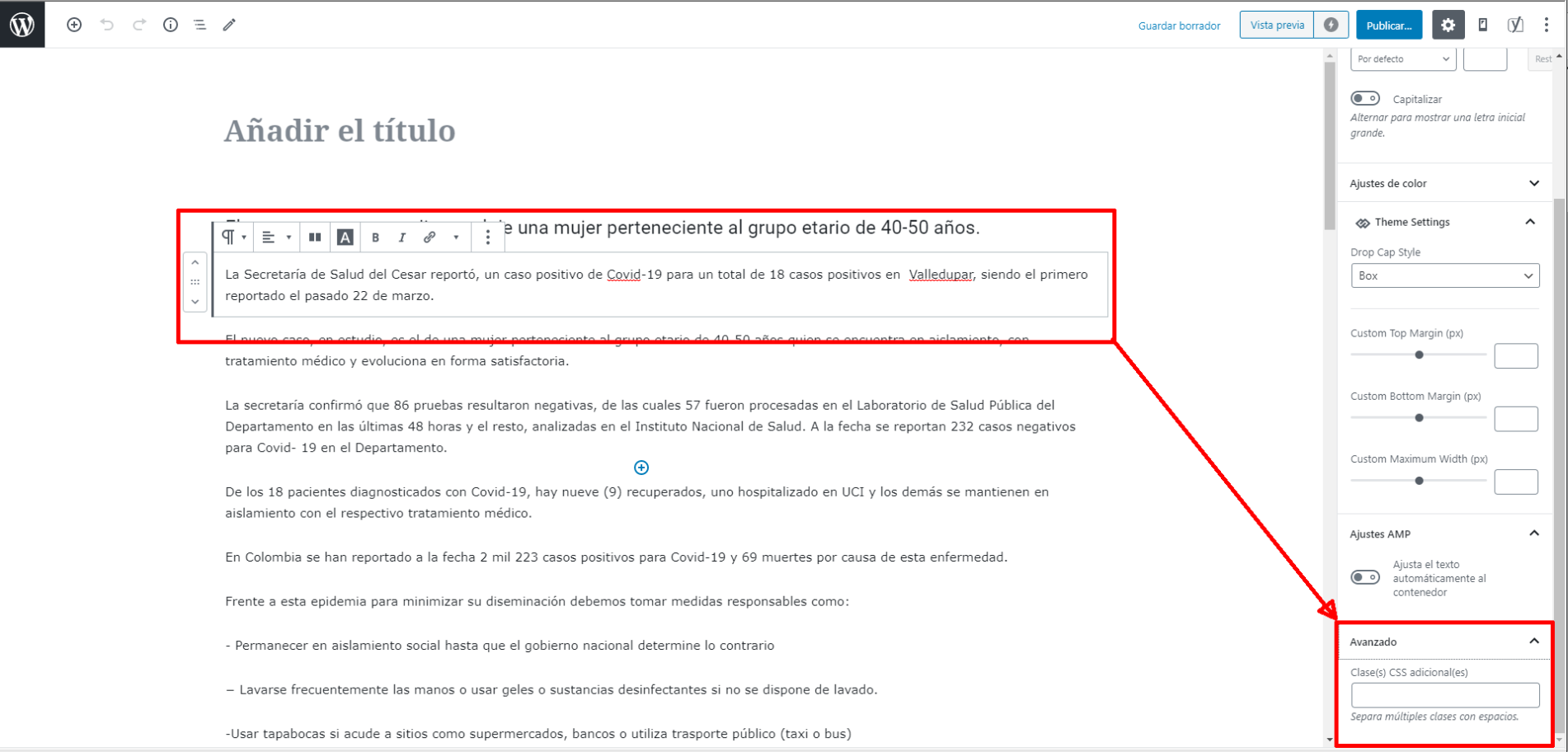
The css options is added for the selected block. That can help when you want to add extra css to that specific class.
An example of how to do it can be more specific.

 delfinista
Hello,
every time I post and attach an image, the server creates 20 different versions of that image with different sizes, which apparently are needed since each one is used for each individual Blocks.
We would like to avoid it. How can we do?
Do we need to disable the blocks we don’t care about in Block settings> Thumbs on module blocks?
If we turn them all off, what happens?
Also … what is the module blocks of the mobile version?
Last request: our server is overloaded with 20 different versions of the same image, is a reverse procedure possible on the Regenerate Thumbnails plugin, or can I delete all 20 regenerated versions and leave only the original image file?
 Calin
Calin Hi,
I just check the problem and for me is look normal, but if you want you can replace the block 7 with a flex, if you want you can import it from cloud https://i.imgur.com/t4Frua4.png -> https://i.imgur.com/ytBC7J3.png -> https://i.imgur.com/xdE7k9a.png on flex you can choose the image -> https://i.imgur.com/g0zgqHG.png -> https://forum.tagdiv.com/flex-block-settings-guide/
Thank you!
 emmalabbe
 All necessary plugins are activated, I use the same elements on other pages and it’s OK. I think that there was an error while saving the page the last time, because when I edit the page with TagDiv composer, I see that several blocks have been mixed with a “text with title” element : now the following code is appearing as the content of the “text with title” element. I see normally the header and the “text with title” element, except that its content is the following:
—————————————–
[vc_row_inner][vc_column_inner width="1/3"][tdm_block_column_content title_text=”QXBwbGljYXRpb25z” title_tag=”h3″ title_size=”tdm-title-sm” url=”#” image1=”3999″ description=”Q2hvaXNpc3NleiUyMGxhJTIwbWVpbGxldXJlJTIwYXBwbGljYXRpb24lMjBwb3VyJTIwbGElMjBsYW5ndWUlMjBxdWUlMjB2b3VzJTIwJUMzJUE5dHVkaWV6JTIwZXQlMjBzZWxvbiUyMHZvdHJlJTIwbml2ZWF1LiUyMEQlQzMlQTljb3V2cmV6JTIwbm90cmUlMjBiZXN0LW9mJTJDJTIwbm9zJTIwciVDMyVBOWR1Y3Rpb25zJTJDJTIwZXQlMjB0b3VzJTIwbm9zJTIwdGVzdHMuJTIw” tdc_css=”eyJhbGwiOnsicGFkZGluZy1ib3R0b20iOiIyOSIsImJhY2tncm91bmQtY29sb3IiOiJyZ2JhKDExMSwxNzksMjMyLDAuMjUpIiwiZGlzcGxheSI6IiJ9fQ==” content_align_horizontal=”content-horiz-center” images_height=”70%” image_height=”258″ image_width=”368″ tds_title1-f_title_font_family=”394″ tds_title1-f_title_font_weight=”500″ f_descr_font_size=”15″ f_descr_font_line_height=”24px” description_color=”#666666″ descr_padding=”0 20px” media_size_image_height=”326″ media_size_image_width=”634″][/vc_column_inner][vc_column_inner width="1/3"][tdm_block_column_content title_text=”UmVzc291cmNlcyUyQyUyMG0lQzMlQTl0aG9kZXMlMkMlMjBhY3Rpdml0JUMzJUE5cw==” title_tag=”h3″ title_size=”tdm-title-sm” url=”#” image1=”1372″ description=”RGVzJTIwcmVzc291cmNlcyUyMGdyYXR1aXRlcyUyMG91JTIwcGF5YW50ZXMlMjBldCUyMGRlcyUyMGlkJUMzJUE5ZXMlMjBjb25jciVDMyVBOHRlcyUyMHBvdXIlMjBwcmF0aXF1ZXIlMjB1bmUlMjBsYW5ndWUlMjBzYW5zJTIwc2UlMjBydWluZXIu” tdc_css=”eyJhbGwiOnsicGFkZGluZy1ib3R0b20iOiIyOSIsImJhY2tncm91bmQtY29sb3IiOiJyZ2JhKDIyMSw1MSw1MSwwLjI2KSIsImRpc3BsYXkiOiIifX0=” content_align_horizontal=”content-horiz-center” image_height=”258″ image_width=”368″ f_descr_font_size=”15″ f_descr_font_line_height=”24px” description_color=”#666666″ tds_title1-f_title_font_family=”394″ tds_title1-f_title_font_weight=”500″ descr_padding=”0 20px” media_size_image_height=”273″ media_size_image_width=”440″][/vc_column_inner][vc_column_inner width="1/3"][/vc_column_inner][/vc_row_inner][vc_row_inner][vc_column_inner][td_block_text_with_title custom_title=”Apprendre avec un professeur ou en passant un examen” header_color=”#dc725b”][/vc_column_inner][/vc_row_inner][vc_row_inner][vc_column_inner width="1/3"][tdm_block_column_content title_text=”Q291cnMlMjBldCUyMEF0ZWxpZXJz” title_tag=”h3″ title_size=”tdm-title-sm” url=”#” image1=”8267″ description=”RCVDMyVBOWNvdXZyZXolMjBkZXMlMjBwcmVzdGF0YWlyZXMlMjBkZSUyMGNvdXJzJTIwJUMzJUEwJTIwZGlzdGFuY2UlMjBvdSUyMGVuJTIwZmFjZS0lQzMlQTAtZmFjZSUyQyUyMGV0JTIwY29uc3VsdGV6JTIwbm9zJTIwYXZpcyUyMGV0JTIwbGVzJTIwcHJvbW90aW9ucyUyMGFjY29yZCVDMyVBOWVzJTIwJUMzJUEwJTIwbm9zJTIwbGVjdGV1cnMu” tdc_css=”eyJhbGwiOnsicGFkZGluZy1ib3R0b20iOiIyOSIsImJhY2tncm91bmQtY29sb3IiOiJyZ2JhKDE2OCwyMywxMTUsMC4yNSkiLCJkaXNwbGF5IjoiIn19″ content_align_horizontal=”content-horiz-center” image_height=”258″ image_width=”368″ tds_title1-f_title_font_family=”394″ tds_title1-f_title_font_weight=”500″ f_descr_font_line_height=”24px” description_color=”#666666″ f_descr_font_size=”15″ descr_padding=”0 20px” media_size_image_height=”404″ media_size_image_width=”350″][/vc_column_inner][vc_column_inner width="1/3"][tdm_block_column_content title_text=”Q2VydGlmaWNhdGlvbnMlMjBldCUyMGZvcm1hdGlvbnMlMjBkaXBsJUMzJUI0bWFudGVz” title_tag=”h3″ title_size=”tdm-title-sm” url=”#” image1=”10196″ description=”VG91cyUyMGxlcyUyMHRlc3RzJTIwZXQlMjBkaXBsJUMzJUI0bWVzJTIwZGUlMjBsYW5ndWUlMkMlMjBsZSUyMGQlQzMlQTl0YWlscyUyMGRlcyUyMGV4YW1lbnMlMkMlMjBldCUyMG5vcyUyMGNvbnNlaWxzJTIwcG91ciUyMGxlcyUyMHIlQzMlQTl1c3Npci4=” tdc_css=”eyJhbGwiOnsicGFkZGluZy1ib3R0b20iOiIyOSIsImJhY2tncm91bmQtY29sb3IiOiJyZ2JhKDIzMiwxOTgsMzIsMC4yNSkiLCJkaXNwbGF5IjoiIn19″ content_align_horizontal=”content-horiz-center” image_height=”258″ image_width=”368″ tds_title1-f_title_font_family=”394″ tds_title1-f_title_font_weight=”500″ f_descr_font_line_height=”24px” description_color=”#666666″ f_descr_font_size=”15″ descr_padding=”0 20px” media_size_image_height=”467″ media_size_image_width=”700″][/vc_column_inner][vc_column_inner width="1/3"][/vc_column_inner][/vc_row_inner][vc_row_inner][vc_column_inner][td_block_text_with_title custom_title=”Apprendre en voyageant” header_color=”#dc725b”][/vc_column_inner][/vc_row_inner][vc_row_inner][vc_column_inner width="1/3"][tdm_block_column_content title_text=”JUMzJTg5dHVkZXMlMjBzdXAlQzMlQTlyaWV1cmVzJTIwJUMzJUEwJTIwbCclQzMlQTl0cmFuZ2Vy” title_tag=”h3″ title_size=”tdm-title-sm” url=”#” image1=”1275″ description=”Q29tbWVudCUyMHBhcnRpciUyMGFwciVDMyVBOHMlMjBsZSUyMGJhYyUyQyUyMGV0JTIwciVDMyVBOXVzc2lyJTIwc29uJTIwYWRtaXNzaW9uJTIwZGFucyUyMHVuZSUyMHVuaXZlcnNpdCVDMyVBOSUyMCVDMyVBMCUyMGwnJUMzJUE5dHJhbmdlci4=” tdc_css=”eyJhbGwiOnsicGFkZGluZy1ib3R0b20iOiIyOSIsImJhY2tncm91bmQtY29sb3IiOiJyZ2JhKDAsOTQsMywwLjIpIiwiZGlzcGxheSI6IiJ9fQ==” content_align_horizontal=”content-horiz-center” image_height=”258″ image_width=”368″ f_descr_font_size=”15″ f_descr_font_line_height=”24px” description_color=”#666666″ tds_title1-f_title_font_family=”394″ tds_title1-f_title_font_weight=”500″ descr_padding=”0 20px” media_size_image_height=”534″ media_size_image_width=”800″][/vc_column_inner][vc_column_inner width="1/3"][tdm_block_column_content title_text=”Vm95YWdlcyUyMGxpbmd1aXN0aXF1ZXMlMjBwb3VyJTIwbGVzJTIwcGx1cyUyMGRlJTIwMTglMjBhbnM=” title_tag=”h3″ title_size=”tdm-title-sm” url=”#” image1=”6945″ description=”VG91dGVzJTIwbGVzJTIwYWx0ZXJuYXRpdmVzJTIwcG91ciUyMHBhcnRpciUyMGVuJTIwcyVDMyVBOWpvdXIlMjBjb3VydCUyMG91JTIwbG9uZyUyQyUyMGVuJTIwJUMzJUE5Y29sZSUyMGRlJTIwbGFuZ3VlJTJDJTIwQXUlMjBwYWlyJTJDJTIwUFZUJTJDJTIwZXRjLi4u” tdc_css=”eyJhbGwiOnsicGFkZGluZy1ib3R0b20iOiIyOSIsImJhY2tncm91bmQtY29sb3IiOiJyZ2JhKDAsMTExLDE5NiwwLjIpIiwiZGlzcGxheSI6IiJ9fQ==” content_align_horizontal=”content-horiz-center” image_height=”258″ image_width=”368″ f_descr_font_size=”15″ f_descr_font_line_height=”24px” description_color=”#666666″ tds_title1-f_title_font_family=”394″ tds_title1-f_title_font_weight=”500″ descr_padding=”0 20px” media_size_image_height=”680″ media_size_image_width=”1024″][/vc_column_inner][vc_column_inner width="1/3"][tdm_block_column_content title_text=”U3RhZ2VzJTIwZXQlMjBqb2JzJTIwJUMzJUEwJTIwbCclQzMlQTl0cmFuZ2Vy” title_tag=”h3″ title_size=”tdm-title-sm” url=”#” image1=”3598″ description=”Tm9zJTIwY29uc2VpbHMlMjBwb3VyJTIwdHJvdXZlciUyMHVuJTIwc3RhZ2UlMjBvdSUyMHVuJTIwam9iJTIwJUMzJUEwJTIwbCclQzMlQTl0cmFuZ2VyJTIwKHJ1YnJpcXVlJTIwZW4tY291cnMlMjBkZSUyMGQlQzMlQTl2ZWxvcHBlbWVudCku” tdc_css=”eyJhbGwiOnsicGFkZGluZy1ib3R0b20iOiIyOSIsImJhY2tncm91bmQtY29sb3IiOiJyZ2JhKDAsNTAsOTYsMC4yKSIsImRpc3BsYXkiOiIifX0=” content_align_horizontal=”content-horiz-center” image_height=”258″ image_width=”368″ f_descr_font_size=”15″ f_descr_font_line_height=”24px” description_color=”#666666″ tds_title1-f_title_font_family=”394″ tds_title1-f_title_font_weight=”500″ descr_padding=”0 20px” media_size_image_height=”680″ media_size_image_width=”1024″][/vc_column_inner][/vc_row_inner][vc_separator][/vc_column][/vc_row][vc_row][vc_column][td_block_text_with_title custom_title=”Quelles langues apprendre et comment devenir bilingue” block_template_id=”td_block_template_12″ header_text_color=”#1e73be”] Vous voulez en savoir plus sur les langues étrangères en général, leur utilité, la signification du bilinguisme ? Voici 2 rubriques qui pourront vous intéresser.
—————————————–
I probably need to rebuild the elements, but I wanted to let you understand what happened, in case there is an easy way to get it back.
Thank you.
 prudentreviews
I noticed that the text above post comments where it says the number of comments (e. 10 COMMENTS) is white and blending into my white background.
When I inspect the element it says it’s “h4 class=”td-comments-title block-title”>, but I can’t seem to find where to edit that element color in the Theme Panel.
Thanks,
Andrew
Calin Hi,
If you want to delete a row (or some elements), inner row you can delete it like in the previous version, using the right click on the row icon -> http://prntscr.com/owlyuw -> http://prntscr.com/owlynq or using the drag and drop -> http://prntscr.com/owlz2r or you can simply click on the row and pres the delete button from your keyboard -> https://www.screencast.com/t/Mai7iyEG
Also if you have the page template set on Page Builder + Latest Articles + Pagination (will apppear the lastes articles and default sidebar) there will be same extra blocks that will not be editable with tagDiv Composer, only from backend from the page.
If the problem persists, please provide some more details and screenshots to identify the problem.
Thank you!
 Vlad S
 Hello !
The mobile theme issue looks like a caching issue. Please make sure you have active only the tagDiv plugins active and also make sure your cache is clear.
The css options is added for the selected block. That can help when you want to add extra css to that specific class.
Unfortunately I don’t quite understand what exactly you want to achieve with the latest question.
Thank you !
 Anonymous
 Thanks for the reply. However, that option is not available when adding a featured image. It doesn’t make sense that all the other blocks with thumbnails that use featured images are fine. Only the first set of images in block 7. Is there another option we can test? It looks horrible on mobile until you arrow right, then arrow left again.
Thank you
Calin Hi,
If you want you can try a custom css, from this ->https://i.imgur.com/8FJH1rM.png in this -> https://i.imgur.com/jMDJpOJ.png
.page-nav-post .post-page-numbers {

  display: none;

}

.page-nav-post .post-page-numbers:first-child, .page-nav-post .post-page-numbers:last-child {

  display: block;

}

.page-nav i{

  font-size: 13px;

  padding: 8px 6px;

}

.page-nav-post a {

  color: #fff;

  background: gray;

}

.page-nav-post .post-page-numbers:last-child{

  background: orange;

}

.page-nav-post .post-page-numbers .td-icon-menu-left:before {

content: '\e80c  BACK';

}

.page-nav-post .post-page-numbers .td-icon-menu-right:before {

content: 'NEXT PAGE \e80d';

}
The code need to be set in theme panel> custom code> custom css.
Hope this will help you!
Calin Hi,
Is possible that the thumbs that were generate by the theme to not fit well, please try to regenerate the images -> https://forum.tagdiv.com/thumbnails-fix-strange-looking-images-on-blocks/
Hope this will help you!
Thank you!
 kgsbca
 Do any other block headers allow the block title to have a hover color?
 kevzpolo
I am not able to delete blocks either by clicking on the delete element or dragging it to the bottom right corner. I have deleted all plugins and this still does not work.
I created a new page to test if there was a bug with existing pages, and the same happens.
emmalabbe I was thinking about replicating the page that I can’t edit with TagDiv Composer (since it’s a new page, no SEO yet). But I don’t know the difference between “duplicate” and “create a new draft”. What should I use to create a new page from the same template ?
Another question to help me saving time : when I create a new page, I import a block template from the Cloud Library, I change a few settings, and then I’d like to save it in order to reuse it in other pages. Is it something that we can do?
Thank you so much.
Emma
 andersonjsantos
 I located the file “tdb_single_content.php” em “wp-content/plugins/td-cloud-library/shortcodes/single”
In the code I found the section that appears to be responsible for displaying the Post text.
$buffy .= ‘<div class=”tdb-block-inner td-fix-index”>’;
$buffy .= $post_content_data[‘post_content’];
if ($post_content_data[‘post_pagination’] != ”) {
$buffy .= ‘<footer>’;
$buffy .= $post_content_data[‘post_pagination’];
$buffy .= ‘<footer>’;
I would like to display in the Post the custom field ACF “<?php echo get_post_meta($post->ID, ‘registro_cas’, true); ?>”
But I can not. Where should I put this code?
Inserted into the template “loop-single-1.php” and it worked, but I need to use the Pro template.
If anyone can help me with this …
Thank you
emmalabbeHi,
I noticed sometimes an error message while saving a content in TagDiv Composer, saying “The current content hasn’t been created by TagDiv Composer”. As you said in a previous answer to someone that it’s OK (this notice isn’t the result of actual issues in most cases, and if you can successfully edit the page or could template then there is no problem, despite the message), I thought it would be fine.
However since yesterday, when I edit the page using TagDiv Composer, I see only lines of code in the most part of it (blocks). I only used TagDiv Composer to create this page, importing blocks from the Cloud Library.
How can I solve this issue ?
And how to avoid that it does the same thing on other pages, since I’m building a lot of new pages to deactivate the Standard Pack.
Thank you.
ludyma Good. It takes a day for the answer and only you will answer me the same as always in a matter of disconnecting the mobile theme, I already made a video before and showed you that even removing all the pluging the page is adapted to mobile devices, it is not shortened. It is enlarged and everything is cut, I put the video back. Please tell me why the theme is not adapted to devices.
As I was saying, I wait for the answer for a whole day and leave questions unanswered, could you answer them please, I will attach them again.
Hello, could you tell me what is the use of the field indicated in the screenshot? naun I’m not very in html, could you tell me xintasis or how to use the newspaper x
The other question if you go down at the bottom of the futer is the contact and privacy options, bottom right, you will see that the location of page upload covers that menu, how can I solve it, how do I change the page upload site or a little higher so that it bea well the menu.
Anonymous Hello @vlad. Pls see https://mypope.com.ph/ and review block ‘Vatican updates’, top right block on desktop browser. Or first block in mobile. Thank you!
Calin Hi,
You can change the color of the excerpts using tagDiv Composer -> https://i.imgur.com/Pl6rSBG.jpg, edit the page click on flex blocks and look in style tab https://i.imgur.com/TWVneG2.png -> https://i.imgur.com/YuG7ZaY.png also for for simple blocks and grids this option is not available, but you can use a custom css like this one -> https://i.imgur.com/PbfgjpT.png
.td-excerpt{

color: red;

}
Hope this will help you!
Vlad S Hello !
You can edit the block using tagDiv Composer as you can see here: https://www.screencast.com/t/kVCvqxJ2y
Thank you !
AnonymousHello,
I applied block 7 to our home page and enabled pagination. When the site loads on desktop and mobile, the thumbnails are dull and low res compared to the next set of thumbnails. When I click on the next page, the thumbnails are okay. Then when I click back arrow, the thumbnails are back to normal. There are no other issues with the other blocks’ thumbnails. Is this a bug?
Calin Hi,
For me is displaying quite good -> https://i.imgur.com/iJYOH55.png please make sure that you have enable the thumbs for the size you are using in theme panel and you can use a regenerate plugin like the one from our documentation -> https://forum.tagdiv.com/thumbnails-fix-strange-looking-images-on-blocks/
Thank you!
Calin Hi,
All the settings that can be done for customize the mobile theme are in theme panel> mobile theme -> https://i.imgur.com/Yj23TlK.png
The search button can be replace only if you make changes in theme files.
You can set the category over image using a custom css like this one -> https://i.imgur.com/ETHPfMP.png
.td-post-category {

    position: absolute;

    left: 0;

    top: 67px;

    display: block;

    background: #dd9933;

    color: black;

    font-weight: 700;

}
The code need to be set here -> https://i.imgur.com/HYfuOWP.png
To display only the tag for premium category use replace the above code with this one
a[href$="/premium/"].td-post-category {

    position: absolute;

    left: 0;

    top: 67px;

    display: block;

    background: #dd9933;

    color: black;

    font-weight: 700;

}

.td-post-category {

 display: none;

}
The problem with the featured image most probably or appear responsive version (without this option to be selected) is caused by some plugins, most probably cache plugins, we recommend to use WP Super Cache with the settings from our guide -> https://forum.tagdiv.com/the-mobile-theme/
Unfortunately the mobile theme plugin has not been tested with memberpress shortcodes, sorry!
Hope this will help you!
 bnelabs
Hi
The “classic” element always disappears when I try writing posts in chrome.
It is not usable . is there a fix for this?
 vallejato
Hi everyone,
I just installed your theme, I would like to understand one thing.
I can write the blog posts directly in the block editor of wordpress, for the pages instead no !!
Can only tagdiv composer be used for pages?
Calin Hi,
I think that you set on the wrong excerpts for block 2 you need to set on these -> https://i.imgur.com/YQKwOQ9.png also you can set only individual on that block -> https://i.imgur.com/8JpIwMT.png
Thank you!



