
- Apitd_api_top_bar_template::update_key
- Apitd_api_top_bar_template::update
- Apitd_api_single_template::update_key
- Apitd_api_single_template::update
- Apitd_api_footer_template::update_key
- Apitd_api_footer_template::update
- Apitd_api_smart_list::update_key
- Apitd_api_smart_list::update
- Apitd_api_thumb::update_key
- Apitd_api_thumb::update
- Apitd_api_category_top_posts_style::update_key
- Apitd_api_category_top_posts_style::update
- Apitd_api_category_template::update_key
- Apitd_api_category_template::update
- Apitd_api_module::update_key
- Apitd_api_module::update
- Apitd_api_block::update_key
- Apitd_api_block::update
- Apitd_api_header_style::update_key
- Apitd_api_header_style::update
 Abder Fath
 Hello,
It would be awesome if it can be added in the next update
Thank you
 zeeshannaqi
Hello,
Updated to the latest version and it breaks most of the site, my all settings gone, including logo and menus.
and posts don’t even show tagdiv composer.
Fiz-x.com.
Any help is appreciated, ideally if it can go back to the way it was.
 propagare
 Hi
I use WP Rocket. I tested it by deactivating the plugin and it didn’t work. I also deactivated Object Cache Pro and it didn’t work either.
Yes, I’m changing the header in the Website Manager. I change it, save the page and the message that the header was saved successfully appears, but when I open the Website Manager again, it doesn’t change.
The difference in behavior from other domains where I have the template is that when I choose the new header, there is no update on the page, while on other sites the page already shows the update.
 Bettina
 Hello!
You do not need a child theme with cloud templates. But you can use the child theme you have with the default templates.
The update does not overwrite the child theme. An issue with that could be whether your child theme is compatible with the new version of our theme.
Thank you!
 Anamaria
 Hello,
When the mobile theme plugin is used, you need to set for pages the page content in the mobile editor using only the options from that editor – https://i.imgur.com/p8EqE1b.png. also, there is an option to disable the mobile theme from a page/post – https://i.imgur.com/d3kTBRf.png. This option appears in the Gutenberg editor. After you disable the mobile theme on the page, you can use the responsive version.
Using our theme, you can choose from 3 mobile versions
-> mobile responsive => https://www.screencast.com/t/oJ2ShOp47
-> mobile theme plugin => https://forum.tagdiv.com/the-mobile-theme/
-> mobile page => https://tagdiv.com/newspaper-10-3-7-update-brings-customizable-and-fast-mobile-pages/ The option that you need to use.
Suppose you created the mobile pages with tagDiv Composer. In that case, when you install the Mobile Theme plugin, your pages will be overwritten by the plugin (the mobile theme comes with its templates for page, post, category, etc, so your current templates from the desktop theme will get converted to the mobile theme layout, the page content is made without builders in mobile editor => https://www.screencast.com/t/xbgZG8kH also, the options that are provided to edit the mobile theme version are limited (this keeps the things simple)).
This is a video about Responsive Newspaper Theme, AMP & Mobile Theme, Mobile Pages & Templates -> https://www.youtube.com/watch?v=SpGkOnJeNZY.
So, the mobile responsive is what you see when that you select the viewport on phone => https://www.screencast.com/t/matV17hH, so some settings may apply for each viewport(where is the border blue), and others are not(where the border is black).
The mobile page has the mobile templates from Cloud Library => https://www.screencast.com/t/YCcZ8rL8
The Mobile responsive version of the theme and the mobile page editor can be edit with tagDiv Composer, the mobile theme plugin cannot.
For example, you can have the mobile theme plugin activated and use the mobile page/mobile responsive version for the homepage/pages, but for the categories pages/404 page, you can’t use the mobile page/mobile responsive version if you have the mobile theme plugin activated.
So, if you want to design the pages with tagDiv Composer, you can use the mobile page or mobile responsive version.
Thank you!
 Paata
Paata thank you Bettina,
I updated ACF, but still the post type CPT Course is not visible. 🤷♂️ Can you advise me what to do this time? Please see the link: https://we.tl/t-InyV7UTFkD
Bettina Hello!
They should be there. Please download the ACF plugin from their site to update it. Your link has expired!
Thank you!
Bettina Hello!
Check all these requirements for the theme: https://forum.tagdiv.com/requirements-for-newspaper/
Please note that page speed is not covered by the support team: https://forum.tagdiv.com/newspaper-theme-support/
I recommend you use fewer features on the page so there will also be fewer requests.
Improving page speed in WordPress is crucial for providing a better user experience and optimizing your website for search engine rankings. Here are some tips to help you enhance your WordPress site’s page speed:
Optimize Images: Compress images before uploading them to your WordPress site. You can use plugins like WP Smush or EWWW Image Optimizer to automatically optimize images without losing quality.
Utilize Caching: Implement caching to reduce server load and speed up page loading times. WordPress caching plugins like WP Super Cache or W3 Total Cache can generate static HTML files of your pages to serve users instead of dynamically generating them each time.
Minify CSS and JavaScript: Minify your CSS and JavaScript files to remove unnecessary characters and reduce file sizes. This can be done manually or through plugins like Autoptimize or W3 Total Cache.
Enable GZIP Compression: Enable GZIP compression on your server to reduce the size of files sent from your server to users’ browsers. Most hosting providers offer GZIP compression, but you can also enable it through plugins like WP Rocket or W3 Total Cache.
Optimize Database: Regularly clean up and optimize your WordPress database to remove unnecessary data and improve performance. You can use plugins like WP-Optimize to automate this process.
Limit External Requests: Minimize the number of external requests your website makes by reducing the use of external scripts and widgets. Each external request adds overhead to your page’s loading time.
Enable Lazy Loading: Implement lazy loading for images, videos, and iframes so that they are only loaded when they are visible on the user’s screen. This can significantly reduce initial page loading times.
Optimize Server Response Time: Choose a reliable hosting provider with fast server response times. Consider using a content delivery network (CDN) to serve your content from servers closer to your users.
Regularly Update Plugins and Themes: Keep your WordPress core, plugins, and themes updated to the latest versions to ensure compatibility with the latest performance optimizations and security patches.
Ads can significantly impact the speed of your WordPress website since they often involve loading external resources and scripts. You can try to limit the number of ads, optimize ad sizes and formats, and implement lazy loading on your ads.
By following these tips, you can significantly improve the page speed of your WordPress website, leading to better user engagement, higher search engine rankings, and overall improved performance.
Thank you!
Anamaria Hello,
You have the mobile theme plugin activated; please deactivate it and clear the cache.
Using our theme, you can choose from 3 mobile versions
-> mobile responsive => https://www.screencast.com/t/oJ2ShOp47
-> mobile theme plugin => https://forum.tagdiv.com/the-mobile-theme/
-> mobile page => https://tagdiv.com/newspaper-10-3-7-update-brings-customizable-and-fast-mobile-pages/ The option that you need to use.
Suppose you created the mobile pages with tagDiv Composer. In that case, when you install the Mobile Theme plugin, your pages will be overwritten by the plugin (the mobile theme comes with its templates for page, post, category, etc, so your current templates from the desktop theme will get converted to the mobile theme layout, the page content is made without builders in mobile editor => https://www.screencast.com/t/xbgZG8kH also, the options that are provided to edit the mobile theme version are limited (this keeps the things simple)).
This is a video about Responsive Newspaper Theme, AMP & Mobile Theme, Mobile Pages & Templates -> https://www.youtube.com/watch?v=SpGkOnJeNZY.
So, the mobile responsive is what you see when that you select the viewport on phone => https://www.screencast.com/t/matV17hH, so some settings may apply for each viewport(where is the border blue), and others are not(where the border is black).
The mobile page has the mobile templates from Cloud Library => https://www.screencast.com/t/YCcZ8rL8
The Mobile responsive version of the theme and the mobile page editor can be edit with tagDiv Composer, the mobile theme plugin cannot.
For example, you can have the mobile theme plugin activated and use the mobile page/mobile responsive version for the homepage/pages, but for the categories pages/404 page, you can’t use the mobile page/mobile responsive version if you have the mobile theme plugin activated.
So, if you want to design the pages with tagDiv Composer, you can use the mobile page or mobile responsive version.
Thank you!
Bettina Hello!
Please note that page speed is not covered by the support team: https://forum.tagdiv.com/newspaper-theme-support/
I can offer some suggestions regarding the page speed:
Optimize Images: Compress images before uploading them to your WordPress site. You can use plugins like WP Smush or EWWW Image Optimizer to automatically optimize images without losing quality.
Utilize Caching: Implement caching to reduce server load and speed up page loading times. WordPress caching plugins like WP Super Cache or W3 Total Cache can generate static HTML files of your pages to serve users instead of dynamically generating them each time.
Minify CSS and JavaScript: Minify your CSS and JavaScript files to remove unnecessary characters and reduce file sizes. This can be done manually or through plugins like Autoptimize or W3 Total Cache.
Enable GZIP Compression: Enable GZIP compression on your server to reduce the size of files sent from your server to users’ browsers. Most hosting providers offer GZIP compression, but you can also enable it through plugins like WP Rocket or W3 Total Cache.
Optimize Database: Regularly clean up and optimize your WordPress database to remove unnecessary data and improve performance. You can use plugins like WP-Optimize to automate this process.
Limit External Requests: Minimize the number of external requests your website makes by reducing the use of external scripts and widgets. Each external request adds overhead to your page’s loading time.
Enable Lazy Loading: Implement lazy loading for images, videos, and iframes so that they are only loaded when they are visible on the user’s screen. This can significantly reduce initial page loading times.
Optimize Server Response Time: Choose a reliable hosting provider with fast server response times. Consider using a content delivery network (CDN) to serve your content from servers closer to your users.
Regularly Update Plugins and Themes: Keep your WordPress core, plugins, and themes updated to the latest versions to ensure compatibility with the latest performance optimizations and security patches.
Ads can significantly impact the speed of your WordPress website since they often involve loading external resources and scripts. You can try to limit the number of ads, optimize ad sizes and formats, and implement lazy loading on your ads.
By following these tips, you can significantly improve the page speed of your WordPress website, leading to better user engagement, higher search engine rankings, and overall improved performance.
Thank you!
Anamaria Hi,
The plugins are automatically updated when you update the theme.
Thank you!
 aimeestock
 UPDATE: I was able to add the logo BUT can’t seem to make it any bigger. It’s SO small. Nothing I do seems to work.
Also still cannot figure out how to replace that top bar background.
 bdp
bdpHi after the update of the theme I have this issue:

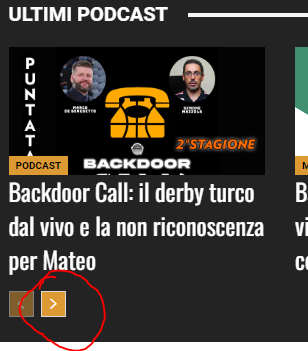
If I click on “Accedi (Login)” or the “Search button” or “next” in the “Ultimi Podcast” nothing happen, the url is only a “#”.
Could you pls explain how fix them?
you could check all from the homepage:
https://www.backdoorpodcast.com/
Thanks
Anamaria Hello,
In most cases, after an update, plugins install automatically. However, there is a possibility that they might not install if the update is performed with extra plugins active or if there are certain restrictions on the site.
Thank you!
 Jude
JudeHi
Please help, I really need a quick solution. My website https://www.judithgermain.com has coaching pro elements that are no longer showing.
When I’m in tag edit I can see those elements clearly. However when I’m looking at the website (logged in or logged out) these elements are not showing. I have cleared cache and tried different browsers and neither works.
My website is being judged in the next day or so, so I really need this fixed quickly. I have down graded to the previous update and also reinstalled to the latest update. It doesn’t work on either.
This has just happened and I don’t know why.
Please advise as soon as possible. I will be most grateful.
Thanks
Jude
 jayflyer
Maybe I should’ve asked this question long time ago, but do we always have to manually re-install and activate theme plugins every time there is a theme update?
 Jeromes
Hi,
I use the default template for post on my website.
Since the last update, I have a problem with link colors on post and I don’t know how to fix :
Could you please help me ?
Many thanks

 tagdivfan2016
Good Afternoon,
I’m having an issue with pagination not working on my site. I’m using a Cloud Template that was built with the TD Composer.
After adding a “Posts Loop” element to my home page, the posts loop and pagination buttons display correctly on the home page, but when I click the pagination button for page 2 it takes me to a page with no content (only the header and footer show).
The URL of the pagination page is example.com/page/2/
Do I need update the permalink settings to make the pagination work correctly?
My Reading settings are:
“A static page” and the page in question is selected as the “Homepage” and a different page is selected as the “Posts page”.
Thanks in advance for your help!
Bettina Hello!
We have 3 options available for mobile versions that you can use:
1. Responsive version: A responsive version of your website looks similar to the desktop version. TagDiv Composer is used to edit the page. Click on the mobile viewport: https://www.screencast.com/t/XDQJedlggSB. There, you can see your mobile version and edit or adjust the elements to look better.
2. Mobile pages: https://tagdiv.com/newspaper-10-3-7-update-brings-customizable-and-fast-mobile-pages
3. Mobile theme plugin: The Mobile Theme is a performance-optimized theme included in the main Newspaper theme that only loads on mobile devices. It comes with its own templates and designs for pages, posts, categories, etc., so your current templates from the desktop theme will get converted to the mobile theme layout. Please see https://forum.tagdiv.com/the-mobile-theme/ and https://forum.tagdiv.com/mobile-theme-introduction/ for more information.
A full explanation is here: https://www.youtube.com/watch?v=SpGkOnJeNZY
If you need to use mobile version 1 or 2, then you need to uninstall the Mobile Theme plugin and AMP.
Thank you!
Abder Fath Hello,
Should I update the acf (scf) plugin from the wordpress dashboard or is it better to download it manually from the acf website? Which one is safer so that my website doesn’t break.
Thank you
 wiljamo
 It works when you submit the review but if you update the site its blank.
 simchris
 Ah. We use ACF PRO over here and not planning to change since we have lifetime unlimited license from the oooolden days (2015/16). Luckily ACF Pro not dependant on anything from WP core or wordpress repo.
ACF Pro is not and will not/cannot be ursurped by WordPress/Matt-o-matic. It has always been updated via the ACF system and not WordPress.org – so it’s not going anywhere, and lives outside the nonsense between Matt and WPE.
“It is marked safe!” 🙂
Sorry to butt in 🙂
-
This reply was modified 1 year by
simchris.
simchris The new SCF being forked by WordPress.org is a direct replacement for ACF Free and will be updated by WordPress and *not* WPEngine. This is simplest intermin migration while testing other tools.
-
This reply was modified 1 year by
 petar777
 Thanks 🙂 Please keep me updated once fixed.
Bettina Hello Mark!
Please make sure you use the latest theme and plugin updates. If the problem is not solved, you can contact them to have it checked. Our theme should work well with the Yoast SEO plugin. Double-check the settings you’ve applied there.
Thank you!


