
No search results were found in Documentation!
 Bettina
 Hello!
Check all these requirements for the theme: https://forum.tagdiv.com/requirements-for-newspaper/
Please note that page speed is not covered by the support team: https://forum.tagdiv.com/newspaper-theme-support/
I recommend you use fewer features on the page so there will also be fewer requests.
Improving page speed in WordPress is crucial for providing a better user experience and optimizing your website for search engine rankings. Here are some tips to help you enhance your WordPress site’s page speed:
Optimize Images: Compress images before uploading them to your WordPress site. You can use plugins like WP Smush or EWWW Image Optimizer to automatically optimize images without losing quality.
Utilize Caching: Implement caching to reduce server load and speed up page loading times. WordPress caching plugins like WP Super Cache or W3 Total Cache can generate static HTML files of your pages to serve users instead of dynamically generating them each time.
Minify CSS and JavaScript: Minify your CSS and JavaScript files to remove unnecessary characters and reduce file sizes. This can be done manually or through plugins like Autoptimize or W3 Total Cache.
Enable GZIP Compression: Enable GZIP compression on your server to reduce the size of files sent from your server to users’ browsers. Most hosting providers offer GZIP compression, but you can also enable it through plugins like WP Rocket or W3 Total Cache.
Optimize Database: Regularly clean up and optimize your WordPress database to remove unnecessary data and improve performance. You can use plugins like WP-Optimize to automate this process.
Limit External Requests: Minimize the number of external requests your website makes by reducing the use of external scripts and widgets. Each external request adds overhead to your page’s loading time.
Enable Lazy Loading: Implement lazy loading for images, videos, and iframes so that they are only loaded when they are visible on the user’s screen. This can significantly reduce initial page loading times.
Optimize Server Response Time: Choose a reliable hosting provider with fast server response times. Consider using a content delivery network (CDN) to serve your content from servers closer to your users.
Regularly Update Plugins and Themes: Keep your WordPress core, plugins, and themes updated to the latest versions to ensure compatibility with the latest performance optimizations and security patches.
Ads can significantly impact the speed of your WordPress website since they often involve loading external resources and scripts. You can try to limit the number of ads, optimize ad sizes and formats, and implement lazy loading on your ads.
By following these tips, you can significantly improve the page speed of your WordPress website, leading to better user engagement, higher search engine rankings, and overall improved performance.
Thank you!
Bettina Hello!
Please note that page speed is not covered by the support team: https://forum.tagdiv.com/newspaper-theme-support/
I can offer some suggestions regarding the page speed:
Optimize Images: Compress images before uploading them to your WordPress site. You can use plugins like WP Smush or EWWW Image Optimizer to automatically optimize images without losing quality.
Utilize Caching: Implement caching to reduce server load and speed up page loading times. WordPress caching plugins like WP Super Cache or W3 Total Cache can generate static HTML files of your pages to serve users instead of dynamically generating them each time.
Minify CSS and JavaScript: Minify your CSS and JavaScript files to remove unnecessary characters and reduce file sizes. This can be done manually or through plugins like Autoptimize or W3 Total Cache.
Enable GZIP Compression: Enable GZIP compression on your server to reduce the size of files sent from your server to users’ browsers. Most hosting providers offer GZIP compression, but you can also enable it through plugins like WP Rocket or W3 Total Cache.
Optimize Database: Regularly clean up and optimize your WordPress database to remove unnecessary data and improve performance. You can use plugins like WP-Optimize to automate this process.
Limit External Requests: Minimize the number of external requests your website makes by reducing the use of external scripts and widgets. Each external request adds overhead to your page’s loading time.
Enable Lazy Loading: Implement lazy loading for images, videos, and iframes so that they are only loaded when they are visible on the user’s screen. This can significantly reduce initial page loading times.
Optimize Server Response Time: Choose a reliable hosting provider with fast server response times. Consider using a content delivery network (CDN) to serve your content from servers closer to your users.
Regularly Update Plugins and Themes: Keep your WordPress core, plugins, and themes updated to the latest versions to ensure compatibility with the latest performance optimizations and security patches.
Ads can significantly impact the speed of your WordPress website since they often involve loading external resources and scripts. You can try to limit the number of ads, optimize ad sizes and formats, and implement lazy loading on your ads.
By following these tips, you can significantly improve the page speed of your WordPress website, leading to better user engagement, higher search engine rankings, and overall improved performance.
Thank you!
 Walletmix
Hello,
I am using this theme : https://themeforest.net/item/newspaper/5489609
And this is my live URL : https://newscred24.com/
But its browsing speed is very slow, not using any extra plugin here, only using WP Super Cache Plugin. I thing my Web Hosting is Fast.
Some issue could be happened like :
1. Unoptimized CSS, JS, and HTML Files of the theme.
2. External Scripts and Fonts load of the theme.
3. Unoptimized Mobile Performance of the theme.
4. Too Many HTTP Requests of the theme
Just asking above the issue is there of my points.
To make it fast of my website what will i do now. Please resolve this issue.
Thanks
 Anamaria
 Hello,
Have you made changes recently? Did you install a plugin or use a plugin to optimize the website?
Thank you!
Bettina Hello!
We have 3 options available for mobile versions that you can use:
1. Responsive version: A responsive version of your website looks similar to the desktop version. TagDiv Composer is used to edit the page. Click on the mobile viewport: https://www.screencast.com/t/XDQJedlggSB. There, you can see your mobile version and edit or adjust the elements to look better.
2. Mobile pages: https://tagdiv.com/newspaper-10-3-7-update-brings-customizable-and-fast-mobile-pages
3. Mobile theme plugin: The Mobile Theme is a performance-optimized theme included in the main Newspaper theme that only loads on mobile devices. It comes with its own templates and designs for pages, posts, categories, etc., so your current templates from the desktop theme will get converted to the mobile theme layout. Please see https://forum.tagdiv.com/the-mobile-theme/ and https://forum.tagdiv.com/mobile-theme-introduction/ for more information.
A full explanation is here: https://www.youtube.com/watch?v=SpGkOnJeNZY
If you need to use mobile version 1 or 2, then you need to uninstall the Mobile Theme plugin and AMP.
Thank you!
Anamaria Hello,
1. Please let me know when you need the block replacements. You can choose what block you want from composer https://i.imgur.com/hV0E9kP.png -> https://i.imgur.com/yP29dQ9.png -> https://forum.tagdiv.com/flex-block-settings-guide/
2. To increase page speed, I recommend checking which thumbnails you are using on your blocks. You might want to avoid having all of them enabled and optimize and regenerate images. You can use the EWWW Image Optimizer for image optimisation, and the OMGF plugin for fonts. Additionally, you can use the WP Rocket plugin.
here are many optimization guides provided by our users here in the forum, some made by us; you could check some of them
– https://www.infophilic.com/get-almost-100-pagespeed-newspaper-theme/
– https://forum.tagdiv.com/cache-plugin-install-and-configure/
– https://forum.tagdiv.com/how-to-make-the-site-faster/
– https://forum.tagdiv.com/topic/high-number-of-ajax-request/
– https://forum.tagdiv.com/topic/score-100100-pagespeed-with-newspaper-wordpress-theme/
– https://www.andraware.com/wp-rocket-for-newspaper-theme/
– https://forum.tagdiv.com/topic/page-speed-guide-for-2023-beginners-and-advanced/
– https://forum.tagdiv.com/topic/newspaper-theme-speedify-your-website/
– https://forum.tagdiv.com/topic/tutorial-chriss-custom-optimizations-for-functions-php-etc/
– https://forum.tagdiv.com/cloudflare-cdn/
– https://forum.tagdiv.com/topic/theme-causing-high-cpu-usage-2/
– https://forum.tagdiv.com/topic/sql-querys-high-cpu/
– https://forum.tagdiv.com/topic/newspaper-theme-slow-to-respond/
– https://premium.wpmudev.org/blog/optimizing-your-wordpress-database-a-complete-guide/
– https://underconstructionpage.com/optimize-wordpress-database/
– https://crunchify.com/better-optimize-wordpress-database-all-in-one-guide/
Thank you!
 Abder Fath
Hello,
CPT author Box’s image quality is low. How to optimize it?
Thank you
Bettina Hello!
A low text-to-HTML ratio means there is relatively little visible text content compared to the amount of HTML code on the page. This can negatively impact SEO because search engines prefer content-rich pages. To address this issue, here are several strategies you can implement:
1. Reduce Excessive HTML Code
Clean Up Inline CSS and JavaScript: Tools like WP Rocket or other caching plugins can help.
Remove Unnecessary HTML Markup: Ensure your HTML is clean and doesn’t contain redundant tags or attributes.
2. Add More Text Content
Increase the amount of meaningful, well-written text on your page. Focus on including relevant keywords and addressing user intent.
Use Alt Text for Images: Ensure that every image has descriptive alt text, which not only improves accessibility but also adds content to the page for search engines.
Use Descriptive Headers: Include H1, H2, H3 headers to structure your content. This increases readability and enhances your SEO.
3. Optimize for Core Web Vitals
Reduce Unnecessary Scripts and Plugins: Remove unnecessary plugins or extra scripts from your page. Too many scripts can increase the size of your HTML document.
Lazy Load Images: Implement lazy loading for images so they don’t bloat the initial HTML load.
4. Optimize Embedded Media
Host Media Externally: Embed videos from external platforms like YouTube or Vimeo instead of hosting them directly on your server, which can add a significant amount of HTML code.
Compress Images: Optimize image sizes using compression tools like TinyPNG to reduce the HTML document size related to image loading.
I hope that helps you!
Thank you!
 Calin
Calin The OMGF plugin will downloading google fonts you are using to your server and serving them locally instead of loading them from Google’s servers. This approach improves performance and privacy by reducing external requests and ensuring the fonts are served from your own server.
“My question is – when I download one of them there are two files in the main directory – OpenSans-VariableFont_wdth,wght and OpenSans-Italic-VariableFont_wdth,wght (I can convert them to Woff with the specified tool in the documentation) but also there is a folder named static with 20 other files. Which of these files should I upload to the TagDiv fonts menu? In the menu there are fields named CUSTOM FONT FILE 1 and CUSTOM FONT FAMILY 1. What is a font file, what is a font family?”
This depends on the font you want to use. Fonts typically range in weight from 100 to 900, and in addition to that, there are italic versions and various combinations of these styles. That’s why there are so many font files. To optimize your site, you only need to upload the specific font weights and styles you plan to use in the theme
Anamaria Hello,
You can use this plugin to optimize the images https://wordpress.org/plugins/ewww-image-optimizer/
Thank you!
Bettina Hello!
You should identify the template you are using on your posts.
We have 3 options available for mobile versions that you can use:
1. Responsive version: A responsive version of your website looks similar to the desktop version. TagDiv Composer is used to edit the page. Click on the mobile viewport: https://www.screencast.com/t/XDQJedlggSB. There, you can see your mobile version and edit or adjust the elements to look better.
2. Mobile pages: https://tagdiv.com/newspaper-10-3-7-update-brings-customizable-and-fast-mobile-pages
3. Mobile theme plugin: The Mobile Theme is a performance-optimized theme included in the main Newspaper theme that only loads on mobile devices. It comes with its own templates and designs for pages, posts, categories, etc., so your current templates from the desktop theme will get converted to the mobile theme layout. Please see https://forum.tagdiv.com/the-mobile-theme/ and https://forum.tagdiv.com/mobile-theme-introduction/ for more information.
A full explanation is here: https://www.youtube.com/watch?v=SpGkOnJeNZY
If you need to use mobile version 1 or 2, then you need to uninstall the Mobile Theme plugin and AMP.
Please note that you need to use cloud templates to edit them with the tagDiv Composer.
We recommend using cloud/PRO templates to have the possibility to edit them with the TagDiv Composer, which contains a lot of functions and features; please check our tutorial here: https://forum.tagdiv.com/tagdiv-composer-tutorial/
More documentation about the cloud templates is here:
– https://forum.tagdiv.com/cloud-library-templates/
– https://forum.tagdiv.com/design-post-pages-using-cloud-library-templates/
– https://forum.tagdiv.com/cloud-library-category-templates/
Thank you!
Calin Hi dscom, the EWWW Image Optimizer – https://wordpress.org/plugins/ewww-image-optimizer/ is one of the plugins that should work with background images.
Also if you want to use image as tags you need to use classic blocks from tagDiv Standard Pack.
Thank you!
 smga
smga Hello
Thank you very much, everything works!
Information for other users who are faced with a similar issue: completely disabling the caching plugin (Wp Optimize) solved the problem
 reloaded
Hi,
i’m actually trying to optimize my autoloaded tables because seems it was over 2 MB, looking in the database (after a small cleanup) i actually see the tables in the image attached.
The list below is called by using this query:
SELECT option_name, length(option_value) AS option_value_length FROM wp_options WHERE autoload='yes' ORDER BY option_value_length DESC;
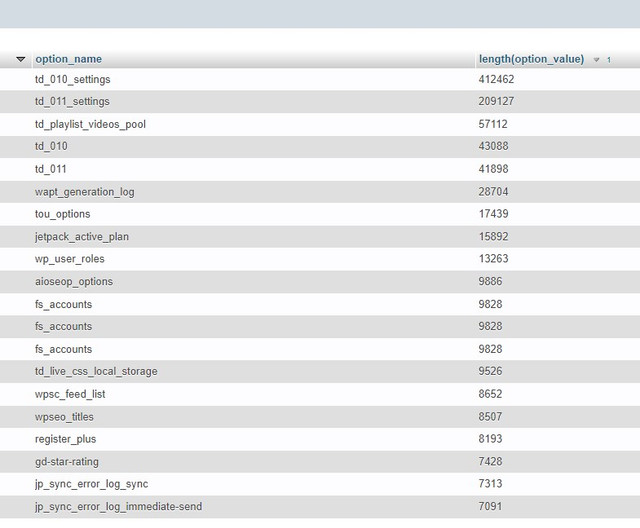
the first 2 (td_010 and td_011) are connected to our beloved theme.
The thing i would like to know is if, in your opinion, the length you see here is normal or not. And if not, can i do something to improve it?
Thanks
Bettina Hello!
We have a guide with some tips on why our Composer is not working properly; please check it here: https://forum.tagdiv.com/tagdiv-composer-not-working/.
Examine some other potential interfering factors: https://forum.tagdiv.com/general-options-may-interfere-newspaper-theme/
Make a test and deactivate ALL plugins except tagDiv ones, also if you are using a cache plugin, deactivate it, clear all cache and try again.
Check all these requirements for the theme: https://forum.tagdiv.com/requirements-for-newspaper/
Please note that page speed is not covered by the support team: https://forum.tagdiv.com/newspaper-theme-support/
I can offer some suggestion regarding the page speed:
Optimize Images: Compress images before uploading them to your WordPress site. You can use plugins like WP Smush or EWWW Image Optimizer to automatically optimize images without losing quality.
Utilize Caching: Implement caching to reduce server load and speed up page loading times. WordPress caching plugins like WP Super Cache or W3 Total Cache can generate static HTML files of your pages to serve users instead of dynamically generating them each time.
Minify CSS and JavaScript: Minify your CSS and JavaScript files to remove unnecessary characters and reduce file sizes. This can be done manually or through plugins like Autoptimize or W3 Total Cache.
Enable GZIP Compression: Enable GZIP compression on your server to reduce the size of files sent from your server to users’ browsers. Most hosting providers offer GZIP compression, but you can also enable it through plugins like WP Rocket or W3 Total Cache.
Optimize Database: Regularly clean up and optimize your WordPress database to remove unnecessary data and improve performance. You can use plugins like WP-Optimize to automate this process.
Limit External Requests: Minimize the number of external requests your website makes by reducing the use of external scripts and widgets. Each external request adds overhead to your page’s loading time.
Enable Lazy Loading: Implement lazy loading for images, videos, and iframes so that they are only loaded when they are visible on the user’s screen. This can significantly reduce initial page loading times.
Optimize Server Response Time: Choose a reliable hosting provider with fast server response times. Consider using a content delivery network (CDN) to serve your content from servers closer to your users.
Regularly Update Plugins and Themes: Keep your WordPress core, plugins, and themes updated to the latest versions to ensure compatibility with the latest performance optimizations and security patches.
Ads can significantly impact the speed of your WordPress website since they often involve loading external resources and scripts. You can try to limit the number of ads, optimize ad sizes and formats, and implement lazy loading on your ads.
By following these tips, you can significantly improve the page speed of your WordPress website, leading to better user engagement, higher search engine rankings, and overall improved performance.
Thank you!
Anamaria Hi,
For issues with the NewsPaper theme and page indexation errors in Google Search Console, here are a few recommendations:
Check the robots.txt file: Ensure your robots.txt isn’t blocking critical pages from being indexed. Use the “URL Inspection” tool in Google Search Console to verify if pages are blocked.
Review Sitemaps: Ensure that your sitemap is submitted correctly and accessible by Google. It’s a good practice to manually submit it through Google Search Console after any significant site updates.
Fix Crawl Errors: Look for any specific crawl errors in Google Search Console. Pages with 404 errors, server errors (5xx), or soft 404s can prevent proper indexation.
Update the Theme: Ensure that your NewsPaper theme is up to date, as outdated themes might have bugs or compatibility issues that affect SEO. Also, check if any plugins or custom code interfere with indexation.
Structured Data Errors: If your pages have schema markup (rich snippets), ensure that it is implemented correctly. Incorrect schema data can lead to indexing issues or poor SEO performance.
Page Speed Optimization: Slow-loading pages can impact indexation. Use tools like Google PageSpeed Insights to check if slow page speeds are an issue and optimize your website for performance.
Check for Duplicate Content: Ensure your site isn’t producing duplicate content or thin content, as this can negatively impact Google’s ability to index your pages properly.
Mobile Usability: Google’s index is mobile-first, so ensure that your theme and website are fully optimized for mobile devices. Fix any mobile usability issues reported in Search Console.
Thank you!
Anamaria Hello,
I just tested on my end, and this issue does not happen https://i.imgur.com/xaYnZjj.png, so I think the settings are not saved for the title SEO that you have set, or you have a plugin that optimizes CSS and JS and interferes with the theme.
Thank you!
Bettina Hello!
We have 3 options available for mobile versions that you can use:
1. Responsive version: A responsive version of your website looks similar to the desktop version. TagDiv Composer is used to edit the page. Click on the mobile viewport: https://www.screencast.com/t/XDQJedlggSB. There, you can see your mobile version and edit or adjust the elements to look better.
2. Mobile pages: https://tagdiv.com/newspaper-10-3-7-update-brings-customizable-and-fast-mobile-pages
3. Mobile theme plugin: The Mobile Theme is a performance-optimized theme included in the main Newspaper theme that only loads on mobile devices. It comes with its own templates and designs for pages, posts, categories, etc., so your current templates from the desktop theme will get converted to the mobile theme layout. Please see https://forum.tagdiv.com/the-mobile-theme/ and https://forum.tagdiv.com/mobile-theme-introduction/ for more information.
A full explanation is here: https://www.youtube.com/watch?v=SpGkOnJeNZY
If you need to use mobile version 1 or 2, then you need to uninstall the Mobile Theme plugin and AMP.
If you modify in the header or footer, then yes, all the changes will be applied on all your pages because you use that header and footer template globally.
Thank you!
Bettina Hello!
We recommend to use cloud/PRO templates in order to have the possibility to edit them with the TagDiv Composer which contains a lot of functions and features, please check our tutorial here: https://forum.tagdiv.com/tagdiv-composer-tutorial/
More documentation about the cloud templates is here:
– https://forum.tagdiv.com/cloud-library-templates/
– https://forum.tagdiv.com/design-post-pages-using-cloud-library-templates/
– https://forum.tagdiv.com/cloud-library-category-templates/
We have 3 options available for mobile versions that you can use:
1. Responsive version: A responsive version of your website looks similar to the desktop version. TagDiv Composer is used to edit the page. Click on the mobile viewport: https://www.screencast.com/t/XDQJedlggSB. There, you can see your mobile version and edit or adjust the elements to look better.
2. Mobile pages: https://tagdiv.com/newspaper-10-3-7-update-brings-customizable-and-fast-mobile-pages
3. Mobile theme plugin: The Mobile Theme is a performance-optimized theme included in the main Newspaper theme that only loads on mobile devices. It comes with its own templates and designs for pages, posts, categories, etc., so your current templates from the desktop theme will get converted to the mobile theme layout. Please see https://forum.tagdiv.com/the-mobile-theme/ and https://forum.tagdiv.com/mobile-theme-introduction/ for more information.
A full explanation is here: https://www.youtube.com/watch?v=SpGkOnJeNZY
If you need to use mobile version 1 or 2, then you need to uninstall the Mobile Theme plugin and AMP.
A solution for sending a screenshot/video with the issue you have is this:
Download, capture, and send: https://www.techsmith.com/jing-tool.html
After making the screenshot, you will have a link; paste it here.
Thank you!
Bettina Hello!
Unfortunately, no.
Please note that page speed is not covered by the support team: https://forum.tagdiv.com/newspaper-theme-support/
I can offer some suggestion regarding the core web vitals issue:
1. Optimize Your Images
Images are often the biggest contributors to slow page loading times. To improve Core Web Vitals, especially Largest Contentful Paint (LCP), follow these best practices:
-> Use WebP Format: Convert your images to the modern WebP format, which is smaller in size than JPEG/PNG.
-> Lazy Load Images: Delay the loading of images that are not immediately visible on the screen. WordPress has native lazy loading, but you can also use plugins like Lazy Load by WP Rocket.
-> Image Compression: Use plugins like Smush or Imagify to automatically compress your images.
2. Minimize JavaScript and CSS
Heavy JavaScript (JS) and CSS files can delay the First Input Delay (FID) and Cumulative Layout Shift (CLS). To reduce this impact:
-> Defer Non-Essential JS: Defer loading non-essential JavaScript files using plugins like WP Rocket or Perfmatters.
-> Minify CSS and JS: Use plugins like Autoptimize or W3 Total Cache to minify CSS and JS files, reducing their size and improving loading times.
-> Remove Unused CSS and JS: Some themes and plugins load unnecessary assets on every page. Use tools like Asset CleanUp or Perfmatters to disable scripts/styles on specific pages.
3. Use Server-Side Optimization
Sometimes the problem lies with the server. Consider these server-side improvements:
-> Upgrade Your Hosting Plan: If you are on shared hosting, upgrading to a more powerful hosting plan (like managed WordPress hosting) can reduce server response times.
-> Use PHP 8+: Ensure your WordPress site is running on PHP 8 or higher for better performance.
Thank you for understanding!
Bettina Hello!
We have 3 options available for mobile versions that you can use:
1. Responsive version: A responsive version of your website looks similar to the desktop version. TagDiv Composer is used to edit the page. Click on the mobile viewport: https://www.screencast.com/t/XDQJedlggSB. There, you can see your mobile version and edit or adjust the elements to look better.
2. Mobile pages: https://tagdiv.com/newspaper-10-3-7-update-brings-customizable-and-fast-mobile-pages
3. Mobile theme plugin: The Mobile Theme is a performance-optimized theme included in the main Newspaper theme that only loads on mobile devices. It comes with its own templates and designs for pages, posts, categories, etc., so your current templates from the desktop theme will get converted to the mobile theme layout. Please see https://forum.tagdiv.com/the-mobile-theme/ and https://forum.tagdiv.com/mobile-theme-introduction/ for more information.
A full explanation is here: https://www.youtube.com/watch?v=SpGkOnJeNZY
If you need to use mobile version 1 or 2, then you need to uninstall the Mobile Theme plugin and AMP.
Thank you!
Bettina Hello!
I’ve tested on the latest update of the theme and it works well. Please apply the background style: stretch an try again.
We have 3 options available for mobile versions that you can use:
1. Responsive version: A responsive version of your website looks similar to the desktop version. TagDiv Composer is used to edit the page. Click on the mobile viewport: https://www.screencast.com/t/XDQJedlggSB. There, you can see your mobile version and edit or adjust the elements to look better.
2. Mobile pages: https://tagdiv.com/newspaper-10-3-7-update-brings-customizable-and-fast-mobile-pages
3. Mobile theme plugin: The Mobile Theme is a performance-optimized theme included in the main Newspaper theme that only loads on mobile devices. It comes with its own templates and designs for pages, posts, categories, etc., so your current templates from the desktop theme will get converted to the mobile theme layout. Please see https://forum.tagdiv.com/the-mobile-theme/ and https://forum.tagdiv.com/mobile-theme-introduction/ for more information.
A full explanation is here: https://www.youtube.com/watch?v=SpGkOnJeNZY
If you need to use mobile version 1 or 2, then you need to uninstall the Mobile Theme plugin and AMP.
Thank you!
Bettina Hello Bernd!
It’s a gradient there: https://app.screencast.com/AT1FaLeQQa0ol
There are also the settings for the fonts: https://app.screencast.com/6RrHkkdBmNYVP
Please note that mobile theme layout is limited in customizations.
We have 3 options available for mobile versions that you can use:
1. Responsive version: A responsive version of your website looks similar to the desktop version. TagDiv Composer is used to edit the page. Click on the mobile viewport: https://www.screencast.com/t/XDQJedlggSB. There, you can see your mobile version and edit or adjust the elements to look better.
2. Mobile pages: https://tagdiv.com/newspaper-10-3-7-update-brings-customizable-and-fast-mobile-pages
3. Mobile theme plugin: The Mobile Theme is a performance-optimized theme included in the main Newspaper theme that only loads on mobile devices. It comes with its own templates and designs for pages, posts, categories, etc., so your current templates from the desktop theme will get converted to the mobile theme layout. Please see https://forum.tagdiv.com/the-mobile-theme/ and https://forum.tagdiv.com/mobile-theme-introduction/ for more information.
A full explanation is here: https://www.youtube.com/watch?v=SpGkOnJeNZY
If you need to use mobile version 1 or 2, then you need to uninstall the Mobile Theme plugin and AMP.
Thank you!
Bettina Hello!
Please note that you can not edit the default header template with the tagdiv Composer. You can choose to use other header template from the Website Manager: https://forum.tagdiv.com/tagdiv-composer-website-manager/
When I check your website, I can see that your header template is a cloud one even on the single template. If you use the Mobile theme layout on the single post template, then you can control the way is looking from the theme panel settings -> Mobile theme.
We have 3 options available for mobile versions that you can use:
1. Responsive version: A responsive version of your website looks similar to the desktop version. TagDiv Composer is used to edit the page. Click on the mobile viewport: https://www.screencast.com/t/XDQJedlggSB. There, you can see your mobile version and edit or adjust the elements to look better.
2. Mobile pages: https://tagdiv.com/newspaper-10-3-7-update-brings-customizable-and-fast-mobile-pages
3. Mobile theme plugin: The Mobile Theme is a performance-optimized theme included in the main Newspaper theme that only loads on mobile devices. It comes with its own templates and designs for pages, posts, categories, etc., so your current templates from the desktop theme will get converted to the mobile theme layout. Please see https://forum.tagdiv.com/the-mobile-theme/ and https://forum.tagdiv.com/mobile-theme-introduction/ for more information.
A full explanation is here: https://www.youtube.com/watch?v=SpGkOnJeNZY
Thank you!
Bettina Hello!
LCP measures how quickly the largest content element (e.g., image, video, text block) becomes visible within the viewport. Improving LCP involves optimizing various aspects of your WordPress site. Here’s a step-by-step guide on how to enhance LCP:
1. Optimize Images
Images are often the largest elements on the page, and optimizing them can significantly improve LCP.
Compress Images: Use tools like Smush, Imagify, or EWWW Image Optimizer to compress images without sacrificing quality.
Use Correct Image Format: Convert images to modern formats like WebP for faster loading.
Lazy Load Images: Lazy loading delays the loading of images until they’re needed. WordPress 5.5 and later versions come with native lazy loading, or you can use plugins like Lazy Load by WP Rocket.
Serve Scaled Images: Ensure images are served in appropriate sizes based on the device.
2. Enable Caching
Caching improves LCP by reducing server response times and decreasing the amount of work needed to load a page.
Browser Caching: Ensure that static resources like CSS, JS, and images are cached in the browser to speed up repeated visits.
3. Minimize CSS and JavaScript
Reducing the size and loading time of CSS and JavaScript files can help improve LCP.
Minify CSS and JavaScript: Use a plugin like Autoptimize to minify CSS and JavaScript files.
Defer Non-Critical JavaScript: Delay the loading of non-critical JavaScript by deferring or async loading to avoid blocking rendering.
Remove Unused CSS: Eliminate unused CSS using WP Rocket’s CSS optimization feature or manual removal for unneeded stylesheets.
4. Use a Content Delivery Network (CDN)
A CDN helps improve LCP by serving your content from servers closest to the user, reducing latency.
Integrate a CDN: Use services like Cloudflare, StackPath, or KeyCDN to serve static resources, like images, CSS, and JavaScript, from a global network of servers.
5. Optimize Fonts
Custom fonts can significantly affect LCP if not optimized properly.
Preload Key Fonts: Use the preload directive in your HTML to load important fonts early.
Use System Fonts: Alternatively, switch to system fonts for faster font rendering.
Font Display Property: Use the font-display: swap; CSS property to ensure text is visible while web fonts load.
6. Reduce Server Response Times (TTFB)
A fast server response time (Time to First Byte, TTFB) is essential for a good LCP score.
Upgrade Hosting: Choose a high-performance hosting provider, especially one that specializes in WordPress, like Kinsta, WP Engine, or SiteGround.
Use Latest PHP Version: Ensure your WordPress site is running the latest version of PHP (8.x) for better performance.
Database Optimization: Regularly clean up and optimize your WordPress database using plugins like WP-Optimize or Advanced Database Cleaner.
7. Reduce Third-Party Scripts
External resources can slow down the page, affecting LCP.
Minimize Third-Party Embeds: Reduce or optimize third-party scripts, such as Google Analytics, social media embeds, and advertising.
Use Tag Manager: If you use multiple tracking scripts, implement them through Google Tag Manager to load them asynchronously and reduce load impact.
8. Prioritize Above-the-Fold Content
The content visible above the fold (i.e., before scrolling) should load quickly for a better LCP score.
Inline Critical CSS: Inline essential CSS directly into the HTML to prioritize above-the-fold content. Tools like Autoptimize or WP Rocket can help with this.
Avoid Heavy Above-the-Fold Elements: Avoid large images or videos that slow down the loading of the above-the-fold content.
9. Use Lazy Load for Iframes and Videos
Similar to image lazy loading, delay loading of iframes and videos until they are needed.
Lazy Load Iframes: Use plugins like Lazy Load for Videos or WP Rocket’s built-in lazy load feature to defer video loading.
10. Monitor with Performance Tools
Continuously track your site’s LCP performance to identify new bottlenecks or opportunities for improvement.
Google PageSpeed Insights: Run your site through Google PageSpeed Insights to get a detailed breakdown of LCP issues.
WebPageTest: Use WebPageTest for deeper insights into your page load times and specific areas affecting LCP.
GTmetrix: Another tool that provides useful performance data, including LCP metrics.
By implementing these optimizations, you should see a noticeable improvement in your WordPress site’s LCP, resulting in a faster, more user-friendly experience.
Thank you!



