
- NewspaperHow to use the Flex Blocks cache option
- NewspaperCache plugin – install and configure
- NewspaperWP Rocket and Newspaper Theme: Optimization Guide
- NewspaperFlex Block Settings Guide
- NewspaperGeneral Options that May Interfere with the Newspaper Theme
- NewspaperThe Newspaper Mobile Theme: Introduction
- NewspaperAutoptimize Plugin – install and configuration
- NewspaperHow to update a plugin
- NewspaperCloudflare (CDN)
- NewspaperFacebook Share
- NewspaperVideo Playlist
- Newspaper7 Days Post Sorting
- NewspaperAjax View Count
- NewspaperTop bar templates
- NewspaperHow to Update the Newspaper Theme
- NewspaperHow to Install Newspaper via FTP
- NewspaperHow to Install Newspaper via WordPress
- NewspaperRequirements for Newspaper
- NewspaperHow to Make the Site Faster
 Bettina
 Hello!
First of all, try to do these steps as quickly as possible so your visitors do not notice the process:
1. disable TagDiv Composer
2. uninstall(delete) TagDiv Composer
3. clear cache (if cache plugin exists)
4. install TagDiv Composer
5. activate TagDiv Composer
6. clear cache (if cache plugin exists)
Also, make sure your WordPress and plugins are up to date(especially the Standard Pack, which should be installed and active if you use default templates). Sometimes, the issue can be caused by a plugin conflict. That’s why, please deactivate ALL plugins except tagDiv ones. Also, if you are using a cache plugin, deactivate it, clear all cache(also from your browser), and try again.
Thank you!
 Anamaria
 Hello,
Have you checked for a plugin conflict? Please enable only tagdiv plugins and clear the cache.
You can try to revert an old revision on a page/template -> https://www.wpbeginner.com/beginners-guide/complete-guide-to-wordpress-post-revisions/
Thank you!
Anamaria Hello,
Have you checked for a plugin conflict? Please deactivate ALL plugins except tagDiv ones; also, if you use a child theme or cache plugin, deactivate them, clear all cache, and try again.
Thank you!
 andreibalici
It seems that when using caching plugins, the Woo Menu Cart component is not updating properly.
I have currently solved this issue by following the steps here: https://docs.flyingpress.com/en/article/why-is-my-cart-count-not-updating-16ze19m/
i.e. adding woocommerce_items_in_cart cookie in the “Bypass cache” settings
Everything works correctly witht that settings, but it means that the site visitors don’t get the cached version of the site if they have a product in their cart.
It seems that the Woo Menu Cart component is not using AJAX to update the cart count.
Anamaria Hello,
Please disable the jetpack, clear the cache and check after.
Thank you!
Bettina Hello!
I tested it on my end and did not encounter this issue.
Make a test and deactivate ALL plugins except tagDiv ones. Also, if you are using a cache plugin, deactivate it, clear all cache, and try again.
If the problem is still there, then please get in touch with us via email at contact@tagdiv.com and provide the following:
– admin URL and credentials
– cPanel URL and credentials
– a link to this topic to identify you
I will check and try to help you as soon as possible!
Thank you!
Bettina Hello!
Make a test and deactivate ALL plugins except tagDiv ones, also if you are using a cache plugin, deactivate it, clear all cache and try again.
If the problem is still there, then please get in touch with us via email at contact@tagdiv.com and provide the following:
– admin URL and credentials
– cPanel URL and credentials
– a link to this topic to identify you
I will check and try to help you as soon as possible!
Thank you!
Bettina Hello!
Check all these requirements for the theme: https://forum.tagdiv.com/requirements-for-newspaper/
Please note that page speed is not covered by the support team: https://forum.tagdiv.com/newspaper-theme-support/
I recommend you use fewer features on the page so there will also be fewer requests.
Improving page speed in WordPress is crucial for providing a better user experience and optimizing your website for search engine rankings. Here are some tips to help you enhance your WordPress site’s page speed:
Optimize Images: Compress images before uploading them to your WordPress site. You can use plugins like WP Smush or EWWW Image Optimizer to automatically optimize images without losing quality.
Utilize Caching: Implement caching to reduce server load and speed up page loading times. WordPress caching plugins like WP Super Cache or W3 Total Cache can generate static HTML files of your pages to serve users instead of dynamically generating them each time.
Minify CSS and JavaScript: Minify your CSS and JavaScript files to remove unnecessary characters and reduce file sizes. This can be done manually or through plugins like Autoptimize or W3 Total Cache.
Enable GZIP Compression: Enable GZIP compression on your server to reduce the size of files sent from your server to users’ browsers. Most hosting providers offer GZIP compression, but you can also enable it through plugins like WP Rocket or W3 Total Cache.
Optimize Database: Regularly clean up and optimize your WordPress database to remove unnecessary data and improve performance. You can use plugins like WP-Optimize to automate this process.
Limit External Requests: Minimize the number of external requests your website makes by reducing the use of external scripts and widgets. Each external request adds overhead to your page’s loading time.
Enable Lazy Loading: Implement lazy loading for images, videos, and iframes so that they are only loaded when they are visible on the user’s screen. This can significantly reduce initial page loading times.
Optimize Server Response Time: Choose a reliable hosting provider with fast server response times. Consider using a content delivery network (CDN) to serve your content from servers closer to your users.
Regularly Update Plugins and Themes: Keep your WordPress core, plugins, and themes updated to the latest versions to ensure compatibility with the latest performance optimizations and security patches.
Ads can significantly impact the speed of your WordPress website since they often involve loading external resources and scripts. You can try to limit the number of ads, optimize ad sizes and formats, and implement lazy loading on your ads.
By following these tips, you can significantly improve the page speed of your WordPress website, leading to better user engagement, higher search engine rankings, and overall improved performance.
Thank you!
 trungthao
 I changed setting of Litespeed cache and it works.
Thank you so much!
Bettina Hello!
Ensure you have the latest updates on the theme, WordPress, and PHP versions.
Sometimes, the issue can be from a plugin conflict or a cache issue. That’s why we recommend first deactivating ALL plugins except tagDiv ones; if you are using a cache plugin, deactivate it, clear all cache (also from your browser), and see the results.
Thank you!
Bettina Hello!
Make a test and deactivate ALL plugins except tagDiv ones, also if you are using a cache plugin, deactivate it, clear all cache and try again.
If the problem is still there, then please get in touch with us via email at contact@tagdiv.com and provide the following:
– admin URL and credentials
– a link to this topic to identify you
I will check and try to help you as soon as possible!
Thank you!
Anamaria Hello,
I think you have a plugin conflict, so please disable the extra plugins, cache the plugin, and check after.
Also, please provide the link to your website.
Thank you!
 IdentidadyFuturo
A couple of weeks ago, I started having an issue with the display of posts in the categories menu of the site fiestascostumbristas.cl.
For example, the post https://www.fiestascostumbristas.cl/2024/11/04/fiesta-del-agro-ancud-2024/ is in the “Los Lagos” category. It appears on the homepage but not in the corresponding menu: https://www.fiestascostumbristas.cl/region-de-los-lagos/
The same happens in the ‘Los Rios’ category, where it only displays 1 post, even though the category has 6
The same happens with all the latest posts. I have reviewed the theme settings and the cache, and Rank Math.
Do you have any idea what the issue could be?
 xelibris
Environment
Theme: Newspaper 12.6.8
Template: Category Template – Week PRO
Site URL: https://sideration.net
Issue Description
Some category pages are not displaying their associated posts without any apparent reason. For example:
The “Société” category has 2 published posts

When clicking “See” to view the category page, no posts are displayed
The category URL is correct
New posts assigned to this category don’t appear either
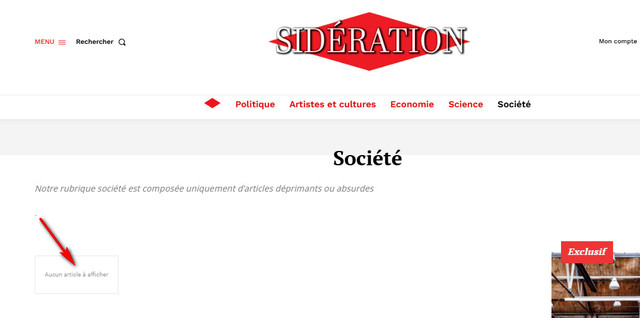
Troubleshooting Steps Taken
Verified the category URL is correct
Tried creating new posts and assigning them to the category
Cleared cache
Verified posts are properly published and categorized
Expected Behavior
Category page should display all posts assigned to that category
Actual Behavior
Category page appears empty, showing no posts
Question
Could you please help me identify why these posts are not appearing on their category page and how to resolve this issue?
Additional information or logs can be provided if needed.
Thank you for your assistance.
Bettina Hello!
Make sure you do not have an Object Cache enabled. You also need to disable the Rocket Loader. Follow this guide: https://forum.tagdiv.com/cloudflare-cdn/. Please disable the CDN temporarily and see if this is causing the issue.
Make a test and deactivate ALL plugins except tagDiv ones, also if you are using a cache plugin, deactivate it, clear all cache and try again.
If the problem is still there, then please get in touch with us via email at contact@tagdiv.com and provide the following:
– admin URL and credentials
– cPanel URL and credentials
– a link to this topic to identify you
I will check and try to help you as soon as possible!
Thank you!
 iitob
iitobOur site: https://shorturl.at/Fz3P6
Using Newspaper theme with tagdiv Cloud Library and tagdiv Composer enabled. We have customized the design of the site’s homepage, single post, pages, category, footer, header etc using cloud templates.
When we make these changes, they look great and can be seen by logged in users. However, non-logged in users cannot see the changes to the site.
We are using Cloudflare and Jetpack with our site. Manually purged the cache many times, tested on multiple devices, nothing seems to help. This is an ongoing issue that has been happening for weeks.
Please help – willing to pay for a quick resolution!
 dkafourou
 Unfortunately, does not seem that it has to do with the cache. The same page that has been built with TagDiv, once published, cannot be edited because “The current content page hasn’t been created with TagDiv composer”. As a result, I cannot edit the homepage, as it does not load at all. Just show this message and stuck in loading.
 yanaguita
When I insert a YouTube link in the middle of a post’s text, the paragraph gets stuck to the player: https://imgur.com/a/mMOBWL3
To try to solve this, I inserted a code in the Newspaper’s custom css:
.tagdiv-type embed, .tagdiv-type iframe, .tagdiv-type object {margin-bottom: 26px;}
The problem is that Firefox and Chrome don’t seem to be recognizing this change, only Brave. Note: I cleared the browser’s cache to test it.
Could you help me solve this problem?
Anamaria Hello,
Our view count elements from the theme counts each view regardless of the user who visits the posts (even the refresh will be counted), but if there cache or other similar options for improvements those can interfere. The first step will be to use the Ajax View Count to keep count when a cache is used.
If you want to have more control over post view count, please notice that you can handle it from Custom Fields from each post editor, like this -> https://www.screencast.com/t/fGWl7fxh6 -> https://www.screencast.com/t/wmrhc7pLPMk2
Now, Google Analytics provides real and unique value for your visitors, maybe from Jetpack stats, too (and this option can be used: https://i.imgur.com/lMxKPYK.png).
Thank you!
trungthao Hello Anamaria,
I could not see object-cache.php in wp-content.
Thank you!
Anamaria Hi,
Please delete the object cache file and check after https://imgur.com/y9Guy2F -> https://forum.tagdiv.com/general-options-may-interfere-newspaper-theme/ and purge the cache for a few times.
Thank you!
Anamaria Hello,
Please activate the tagdiv Composer plugin, and clear the cache.
Thank you!
Anamaria Hello,
Ok, so you have created a new page, but this one is not displayed. This issue can be from your cache plugin, please purge the cache a few times. Also, you can try to disable the cache plugin, delete the object cache file https://i.imgur.com/y9Guy2F.png, and check after.
Thank you!
 fhernandoq
Hi i have this problem so i have this configuration:
Theme config
Registration key xxxxxxxxxxxxxxx
Theme name i Newspaper
Theme version i 12.6.8
Theme database version i 12.6.8
HTTP channel test wordpress
Installed demo i Estates PRO - demo ID: estates_pro | install type: no_content
php.ini configuration
Server software i Apache
PHP Version i 8.2.23
post_max_size i 32M - You cannot upload images, themes and plugins that have a size bigger than this value. To see how you can change this please check our guide here.
max_execution_time 60
max_input_vars 5000
SUHOSIN installed false
PHP extensions
mbstring available
GD library available
WordPress and plugins
WP Home URL i https://mexicooriginal.com
WP Site URL i https://mexicooriginal.com
WP version i 6.6.2
WP multisite enabled i No
WP Language i es_MX
WP Memory Limit 256 MB/request
WP_DEBUG False
Caching plugin No caching plugin detected - for best performance we recommend using WP Super Cache
ABSPATH /home/paticcaeekv6/public_html/
WP_HOME Indefinido
WP_SITEURL Indefinido
WP_CONTENT_DIR /home/paticcaeekv6/public_html/wp-content
WP_PLUGIN_DIR /home/paticcaeekv6/public_html/wp-content/plugins
WP_MEMORY_LIMIT 256M
WP_MAX_MEMORY_LIMIT 256M
WP_DEBUG Desactivado
WP_DEBUG_DISPLAY Habilitado
WP_DEBUG_LOG Desactivado
SCRIPT_DEBUG Desactivado
WP_CACHE Desactivado
CONCATENATE_SCRIPTS Indefinido
COMPRESS_SCRIPTS Indefinido
COMPRESS_CSS Indefinido
WP_ENVIRONMENT_TYPE Indefinido
WP_DEVELOPMENT_MODE Desactivado
DB_CHARSET utf8
DB_COLLATE
I’ve already reset the key, and reinstall de plugins, it’s empty this wp configuration, onlye have the plugins that need Newspaper.
 Assadujaman
 Theme version: 12.6.8
WP version: 6.6.2
PHP Version: 8.2.14
Caching plugin: WP super cache
I have checked all plugins and found no conflicts.


